





Introduction: Why Resolution Isn't the Upgrade Your Meeting Room Needs
A 4K webcam seems like the obvious upgrade — more pixels, better image, end of story. It is the logic that drives thousands of purchasing decisions every month: find the webcam with the highest resolution, plug it in, and expect meeting room video quality to transform overnight.
But for a meeting room, resolution is the least important specification on the data sheet.
Walk into most small-to-medium conference rooms and you will find the same scene: a laptop at the head of the table, its built-in camera capturing whoever sits closest, while remote participants squint at a distorted fisheye view of three half-faces and a ceiling tile. Someone moved a business webcam to the center of the table, but now the cable stretches awkwardly across three seats and the audio picks up every keystroke from the person typing notes.
The real question is not "how many pixels does this camera have." The real question is: can the people on the other end of the call see and hear everyone in the room clearly, without friction, every single time?
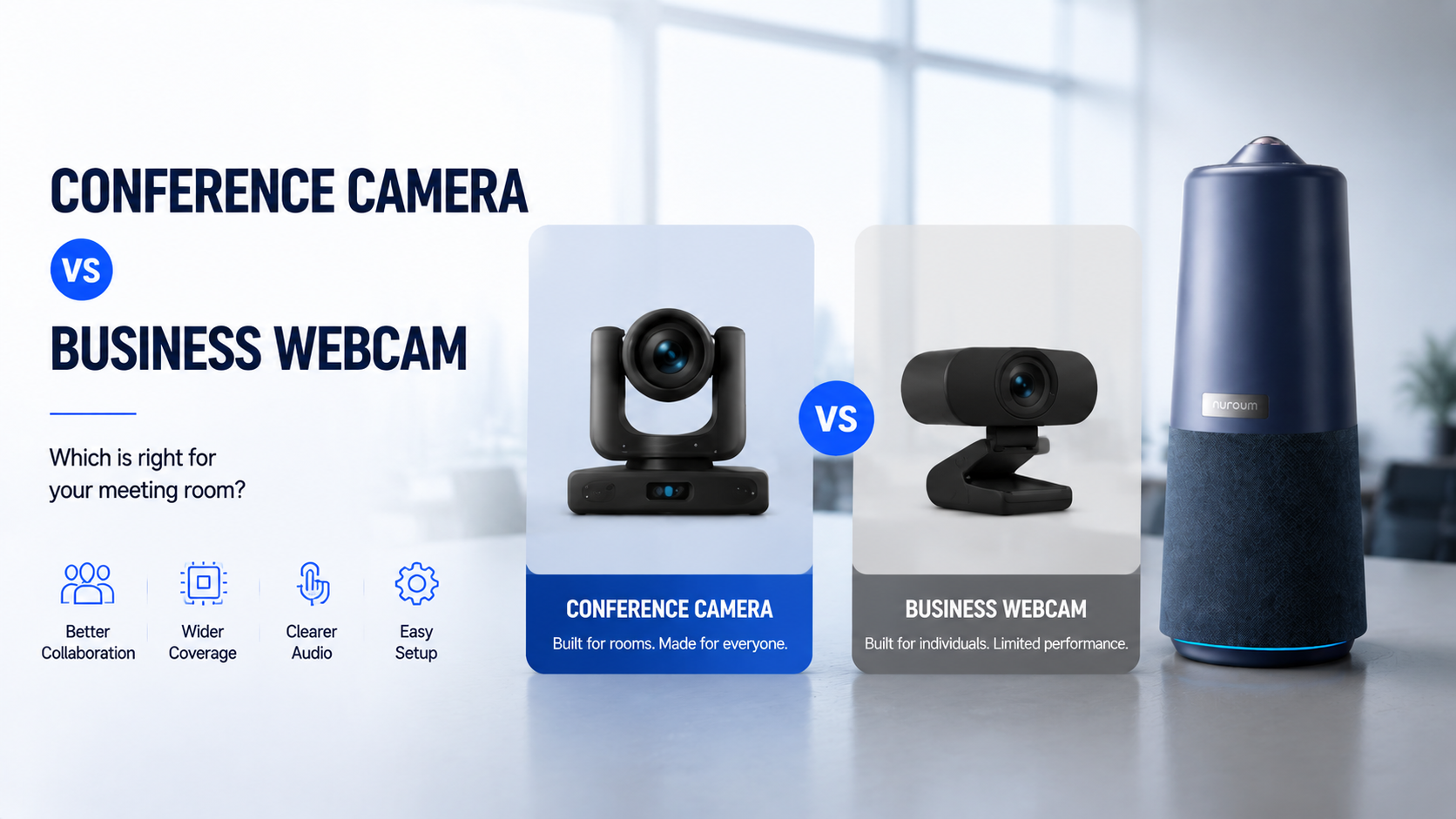
This article breaks down the seven dimensions that actually determine meeting room video quality — field of view, audio architecture, group framing, low-light performance, setup complexity, scalability, and total cost — and explains why an all-in-one conference camera consistently outperforms even the best standalone video conferencing webcam for group meetings.
The Resolution Trap: Why 4K Doesn't Solve the Real Problem
Search for "best 4K webcam for conference room" and you will be buried in recommendations. The marketing machine has done its job: consumers now equate video quality with resolution numbers. 1080P good, 4K better, 8K best. Buy the biggest number your budget allows.
This approach works for a photographer editing images on a calibrated monitor. It falls apart completely for a meeting room.
The Three Problems Resolution Cannot Solve
Problem 1: What the camera misses matters more than what it sees sharply.
A 4K webcam can render every pore on a single speaker's face with stunning clarity. But if it has a 78-degree field of view — typical for most USB webcam models — it physically cannot capture the three colleagues sitting on either side of that speaker. Remote participants see one person in crystalline 4K and hear muffled voices from somewhere off-screen. The extra pixels delivered zero additional meeting value.
Problem 2: Low-light environments neutralize resolution gains.
Most conference rooms are not lit like photography studios. Fluorescent ceiling panels, indirect natural light, and dimmer switches set to "presentation mode" create challenging conditions where even a 4K sensor struggles. A webcam with a small sensor and no low-light optimization will produce noisy, grainy video regardless of its resolution spec. The 4K number on the box is a laboratory measurement, not a real-world performance guarantee.
Problem 3: Resolution consumes bandwidth that meetings cannot spare.
A 4K video stream at 30 frames per second requires roughly 3-5 Mbps of stable upload bandwidth — per stream. In a real office environment with multiple users on the same network, that bandwidth is not guaranteed. When the stream degrades to compensate, the 4K advantage evaporates. A well-optimized 1080P stream with proper lighting, framing, and audio delivers a measurably better remote experience than a stuttering, blocky 4K feed.
What Actually Moves the Needle
When you survey remote meeting participants about what frustrates them, pixel count rarely makes the list. The recurring complaints are visceral and consistent:
- "I can't see who's talking"
- "The audio sounds like everyone is in a tunnel"
- "Half the room is cut off"
- "I can hear keyboard typing louder than voices"
- "Someone has to huddle close to the camera every time they speak"
These are field-of-view problems, audio problems, and framing problems. Resolution is a footnote. The industry has spent years racing toward 4K because it is easy to market, while the dimensions that actually determine meeting quality — coverage, audio clarity, and intelligent framing — have received far less consumer attention.
This is where the decision guide becomes practical. If you are comparing a business webcam against an all-in-one conference camera for a room that seats three or more people, the webcam loses before you even reach the resolution conversation. Let's walk through why, one dimension at a time.
Field of View: The Metric That Actually Determines Who Gets Seen
Field of view — the angular width that a camera can capture — is the single most under-discussed specification in meeting room video. It is more important than resolution, more important than frame rate, and more important than any software feature you will find on a spec sheet.
Why FOV Dictates the Meeting Experience
A standard video conferencing webcam has a field of view between 65 and 90 degrees. At 78 degrees — a common value for popular models — here is what the camera can physically see from a distance of 6 feet:
- One person, centered, from roughly chest to top of head
- About 18-24 inches of horizontal space on either side of the lens
- Everything beyond that width is simply not in the frame
Now place three people at a typical 6-foot conference table. They sit roughly 2 feet apart. The person in the center is visible. The two people on either side are half-visible at best — a shoulder, an elbow, maybe an ear if they lean in. Remote participants watch a conversation where two of the three speakers are disembodied voices from somewhere outside the camera's view.
Wide-Angle Lenses and the Coverage Math
An all-in-one conference camera with a 110-120 degree field of view changes the equation entirely. From the same 6-foot distance, it captures:
- The entire width of a standard conference table
- 4-6 seated participants, fully visible
- Whiteboard or presentation screen content without reframing
This is not a marginal improvement. It is the difference between a meeting that works and a meeting where half the room might as well not be there. When you read discussions about webcam limitations, the vocabulary is telling: "field of view," "FOV," "can't see everyone," "narrow angle." These are not fringe complaints — they describe the fundamental mismatch between a single-user device and a multi-person use case.
360-Degree Capability: The Next Step
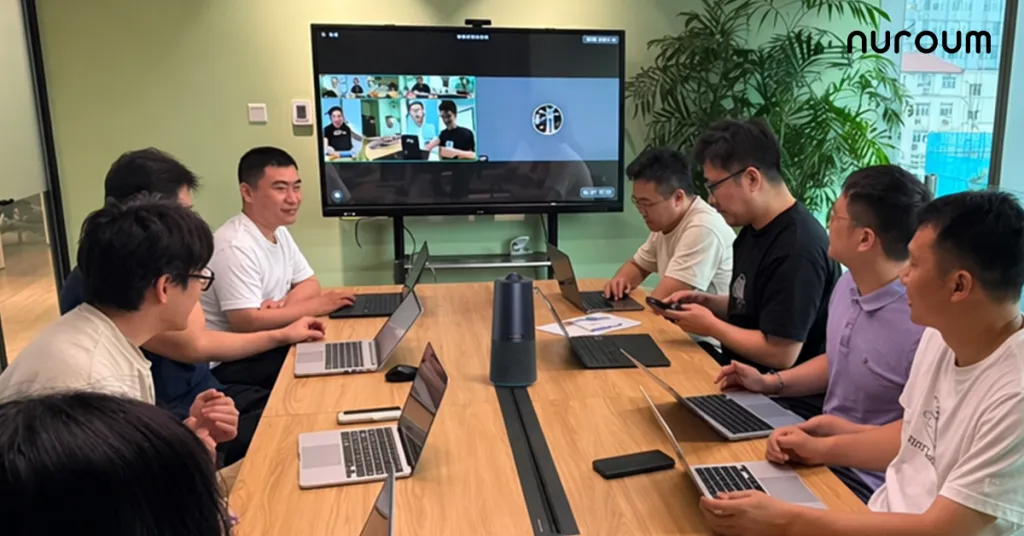
Some conference cameras push the field-of-view concept even further. A 360-degree fisheye lens captures the entire room from a central position on the table — every participant, every angle, no blind spots. Combined with AI-powered cropping, the system can intelligently extract the active discussion zone and present it as a standard video feed, while still having full-room awareness for when participants shift positions or new people join.
The key insight: a wider lens does not just show more of the room. It eliminates the need for participants to physically reposition themselves for the camera. People sit naturally, speak naturally, and the technology adapts to them — not the other way around.
Audio: Why Your Webcam's Microphone Is Failing Your Meetings
If field of view is the most under-discussed video spec, audio quality is the most underrated component of a meeting system entirely. Conventional wisdom says video conferencing is about video. The lived experience of remote work says otherwise: people will tolerate mediocre video for an entire hour-long call, but bad audio causes meeting abandonment within the first three minutes.
The Built-In Microphone Problem
Every USB webcam has a microphone. In controlled testing environments — a quiet office, one person speaking directly into the camera from 18 inches away — these microphones perform adequately. A meeting room is the opposite of a controlled testing environment.
Here is what a typical webcam microphone captures in a real conference room:
- Keyboard noise: Every keystroke from every laptop on the table. The clicking is often louder than the speaker's voice because the keyboard is physically closer to the webcam than the speaker's mouth.
- Room echo: Hard surfaces — glass walls, whiteboards, bare tables — reflect sound back into the microphone with a 50-200ms delay, creating the "tunnel voice" effect that makes remote participants feel like they are listening through a tin can.
- Uneven pickup: The person nearest the camera sounds clear. The person three seats away sounds distant and hollow. The person at the far end of the table might as well be on another call.
- HVAC and ambient noise: Air conditioning vents, hallway conversations, and street noise bleed into the call because the microphone has no directional filtering capability.
The result is a meeting where remote participants strain to hear, constantly asking people to repeat themselves, and gradually disengage from the conversation entirely.
Why a Webcam With Speaker Becomes a Necessity
Separate from the microphone problem is the speaker problem. A standalone webcam with speaker functionality does not exist in the traditional sense — most webcams output video and input audio, but produce no sound. For a group meeting, that means you need:
- A webcam for video
- A separate speaker or speakerphone for audio output
- Possibly a separate microphone if the webcam's mic proves unusable
This device sprawl creates its own set of problems — more cables, more USB ports consumed, more potential points of failure, and a setup process that intimidates non-technical users. When someone walks into a meeting room and sees three devices where one should be, the most common response is to ignore the room system entirely and use their laptop. For teams specifically looking to consolidate their audio setup, the speakerphone-plus-webcam combination is a common but suboptimal intermediate step.
The All-in-One Audio Architecture
An all-in-one conference camera solves audio at the architectural level rather than treating it as an afterthought. Key components include:
Multiple noise-canceling microphones arranged in an array: Instead of a single omnidirectional mic picking up everything equally, a 4-6 microphone array uses beamforming to identify the direction of active speech and prioritize those signals. Background noise in other directions is algorithmically suppressed. The difference is not subtle — it is the difference between "I can barely hear you" and "it sounds like I'm in the room."
Full-duplex audio: This is a technical feature with an everyday consequence. Half-duplex systems — common in cheap speakerphones — can only transmit audio in one direction at a time. When the remote participant speaks, the local microphone temporarily mutes. When the local participant speaks, the remote speaker cuts out. Full-duplex allows simultaneous two-way audio, meaning natural conversation with interruptions, affirmations ("yes," "I agree"), and overlapping dialogue just works the way it does in person. No one has to take turns like a walkie-talkie.
Built-in Hi-Fi speaker: A conference camera with an integrated speaker eliminates the separate speakerphone. Audio plays at a volume that fills a small-to-medium room without distortion. The audio pipeline is tuned end-to-end — the microphone array and speaker are designed to work together, with echo cancellation algorithms that know the exact acoustic characteristics of the device.
The shift from "webcam microphone" to "purpose-built conference audio system" is arguably the single largest upgrade in meeting quality that a team can make. It is also the upgrade that standalone webcams, regardless of their video resolution, simply cannot deliver.
Device Sprawl: The Hidden Cost of Building a Meeting Room Piece by Piece
When a team tries to equip a meeting room using consumer-grade components, the result is almost always a collection of separate devices connected through a fragile chain of cables and adapters. The setup looks something like this:
- A 4K webcam mounted on a tripod in the center of the table
- A USB extension cable running from the webcam to the room's dedicated laptop
- A Bluetooth speakerphone paired to the laptop (if remembered and charged)
- Possibly a separate USB microphone because the webcam's built-in mic proved unusable
- A remote control for the speakerphone that no one can find
This is the hidden architecture of the "just use a webcam" approach, and it introduces costs that are rarely accounted for in purchasing decisions.
The Cable Management Tax
A standard meeting room table with a USB webcam requires at least one cable — typically a 6-foot USB-A to USB-C cable — running from the camera to the host computer. On a good day, this cable is tidy and out of the way. On a typical day, it crosses the path of coffee cups, notebooks, and elbows. On a bad day, someone trips on it, the camera clatters to the floor, and the meeting grinds to a halt while everyone debates whether the camera is still functional.
Add a separate speakerphone to the mix and now you have two cables or a Bluetooth pairing dance that someone must perform before every meeting. Add a separate microphone and you are at three devices, three cables, three potential failure points. The cognitive load of managing this setup falls on whoever arrives at the room first — not an IT professional, but a regular employee who just wants to start their meeting.
The Single-Cable Promise
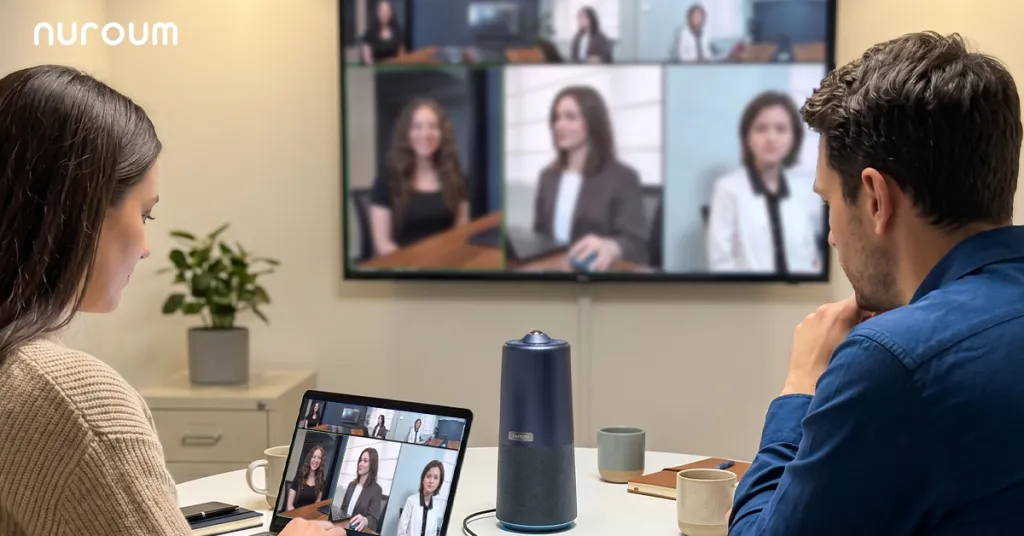
An all-in-one conference camera reduces the entire setup to one device connected by one cable. Plug it into a USB port, select it as the camera and audio device in your meeting software, and start the call. There is no pairing process, no battery to check, no separate volume control to hunt for.
This simplicity is not a luxury feature. It directly affects whether the room system gets used or ignored. When setup requires more than 30 seconds and more than one cable, people default to their laptop's built-in camera and microphone — defeating the purpose of investing in better equipment in the first place.
Compatibility: The Driver Question
A common frustration with standalone webcams — documented extensively in user forums — is driver issues. A device that works seamlessly on one operating system may require manual driver installation on another. Firmware updates may break existing configurations. Meeting software updates may introduce compatibility regressions.
The reason is architectural: many webcams rely on manufacturer-specific drivers for advanced features like auto-framing or digital zoom. When the driver fails, those features disappear, and users are left troubleshooting instead of meeting.
Conference cameras built on the USB Video Class (UVC) standard avoid this entirely. UVC is a native protocol supported at the operating system level by Windows, macOS, and Linux. The camera appears as a standard video input device without requiring any additional software. This means it works immediately with Zoom, Microsoft Teams, Google Meet, GoToMeeting, Webex, and any other application that accepts a webcam input — guaranteed, without exception, across platform updates.
Trade-off Matrix: Business Webcam vs. All-in-One Conference Camera
The following matrix compares a standalone business webcam against an all-in-one conference camera across the dimensions that actually determine meeting quality. Each dimension has been selected to reflect real-world pain points rather than spec-sheet checkboxes.
| Dimension | Business Webcam | All-in-One Conference Camera |
|---|---|---|
| Field of View | 65°–90° — captures 1-2 people seated close together. Anyone outside the narrow cone is cut from the frame. | 110°–360° — captures the full width of a conference table and 4-6+ participants without repositioning. |
| Group Framing Capability | Manual repositioning required. If three people want to be seen, someone must physically adjust the camera angle before the meeting starts. | AI-powered automatic framing. The camera identifies active speakers and adjusts the view in real time. Participants interact naturally without thinking about camera position. |
| Microphone Quality | Single or dual omnidirectional elements. Picks up keyboard noise, room echo, and HVAC hum with equal weight as voices. Effective pickup range: 3-5 feet. | 4-6 microphone array with beamforming and noise cancellation. Identifies speech direction and suppresses off-axis noise. Effective pickup range: 6-16 feet. |
| Built-in Speaker | None — requires laptop speakers (too quiet for a room) or a separate speakerphone. | Full-duplex Hi-Fi speaker integrated into the device. Room-filling volume with echo cancellation tuned to the microphone array. |
| Audio Infrastructure Cost | Webcam ($30–$200) + Speakerphone ($80–$300) + USB hub/cables ($20–$50). Total: $130–$550 across 2-3 devices. | Single device ($400–$700). One purchase, one cable, one setup. |
| Low-Light Performance | Small image sensors with basic noise reduction. Grainy, dark video in typical conference room lighting (indirect overhead, presentation dimming). | Larger sensors with optimized low-light algorithms. Cleaner video in the lighting conditions that actual conference rooms provide. |
| Scalability Across Room Sizes | Fixed to 1-2 people at close range. Moving to a larger room means buying a completely different device. | Adaptable via FOV and AI modes. Small huddle room, medium conference room, and even larger spaces can use the same device with different configuration modes. |
| Setup Complexity | 10-20 minutes: mount webcam, route cable, pair/connect speakerphone, test audio levels, configure software. May require driver installation and troubleshooting on some operating systems. | Under 1 minute: place on table, plug USB cable, select device in meeting app. UVC plug-and-play across Windows, macOS, Linux. No drivers, no pairing, no separate audio configuration. |
| Driver & Software Risk | Manufacturer-specific drivers for advanced features (auto-focus, auto-framing). OS and app updates can break compatibility. User forums document recurring driver issues. | UVC standard protocol — no drivers required. OS-level native support on all platforms. Features operate through standard video/audio streams unaffected by app-level updates. |
| Remote Participant Experience | One or two people visible and audible. Rest of the room is disembodied voices. Remote participants feel excluded from in-room dynamics. | All participants visible and audible. AI-powered speaker tracking gives remote participants a "front row" experience. Equal participation regardless of physical seat position. |
| Total Cost of Ownership (3-Year) | Initial hardware ($130–$550) + replacement/upgrade costs ($50–$150/year as devices break or become outdated) + IT support time for troubleshooting (~2-4 hours/month) + meeting productivity loss (difficult to quantify, but real). | Single hardware purchase ($400–$700). Minimal ongoing costs. No IT burden. Devices designed for years of daily meeting room use without degradation. |
Reading the Trade-off: What Matters Most for Your Situation
The matrix reveals a pattern: for any room seating three or more people, the all-in-one conference camera wins not marginally but categorically across dimensions that directly impact meeting quality — FOV, audio, framing, and setup simplicity.
The only dimension where the webcam has an unambiguous advantage is absolute minimum cost for a single-user setup. If the meeting "room" is your personal desk and you are the only person ever on camera, a quality video conferencing webcam remains a perfectly appropriate choice. The device fits the use case.
For anything beyond that — a huddle space, a small conference room, a medium boardroom — the webcam is being asked to perform a function it was never designed for, and the gaps compound across multiple dimensions simultaneously.
Where a Business Webcam Still Makes Sense
This article has spent considerable time explaining why standalone webcams fall short for meeting rooms. But it is important — and honest — to recognize the scenarios where a webcam is genuinely the right tool for the job.
Devil's Advocate: When the Webcam Wins
Scenario 1: Personal desk, single user
If you work at a dedicated desk, attend meetings primarily as an individual contributor, and are the only person ever on camera from your location, a business webcam is the optimal choice. A 1080P or 4K webcam provides excellent individual video quality. Your audio setup can use a headset — eliminating room echo concerns entirely. The narrow FOV is a feature, not a bug, because it keeps the frame focused on you rather than showing your entire office. Price range: $50–$200.
Scenario 2: Fully remote distributed team with zero shared rooms
For a company where every employee works from home and there are no physical meeting rooms, equipping each person with a quality USB webcam is the rational strategy. There is no "room" to capture, no group to frame, no multi-person audio environment to solve. Each person is their own broadcast studio of one. A webcam for each desk, paired with individual headsets, delivers the right experience at the right cost.
Scenario 3: Temporary or pop-up meeting space
If you need to equip a temporary meeting area — a hotel room converted to a project war room for two weeks, a pop-up booth at a trade show — the low cost and portability of a webcam make sense. The investment threshold is low, the setup can be packed away easily, and the temporary nature of the use case means the limitations are tolerable for a short period.
Scenario 4: Extremely budget-constrained small team
For a team of 3-4 people with a hard budget ceiling of $100-$150 for meeting room equipment, a webcam paired with existing laptop audio is the only viable option. It will not deliver a great meeting experience, but it will deliver a functional one in a pinch. The key is to be aware of the trade-offs being made and not expect the webcam to perform beyond its design parameters.
The Inflection Point
The calculus flips from "webcam is sufficient" to "webcam is a bottleneck" at roughly three people in a room. At that point:
- FOV limitations start excluding participants
- Microphone pickup becomes uneven
- Laptop speakers can no longer fill the space
- The friction of manual adjustment begins to affect meeting flow
This inflection point is remarkably consistent across room sizes, budgets, and use cases. If your meeting room regularly hosts three or more people, the webcam approach has crossed from pragmatic to counterproductive. The question is not whether to upgrade, but what to upgrade to — which brings us to the practical decision framework.
The "Just Upgrade One Component" Fallacy
A common intermediate strategy is to keep the webcam for video and add a better audio solution — a webcam with speaker (an external unit) or a dedicated conference speakerphone. The logic is appealing: fix the weakest link first, spend less money, iterate gradually.
The problem is that this approach locks in the webcam's video limitations permanently while adding another device, another cable, and another point of configuration. You have not simplified the room; you have made it more complex. Six months later, when the webcam's narrow FOV becomes the obvious bottleneck, you replace it too — and now you have spent $300-$500 across two devices when a single all-in-one unit at $400-$700 would have solved everything from the start.
The incremental upgrade path costs nearly the same as the integrated solution while delivering a worse experience for every meeting between upgrade one and upgrade two. For meeting rooms that generate real business outcomes — client calls, cross-team collaboration, hiring interviews — that experience gap has a cost that dwarfs the hardware savings.
Introducing the Nuroum 360 Pro: A Case Study in All-in-One Design
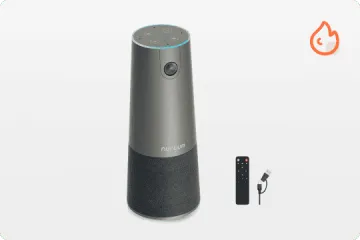
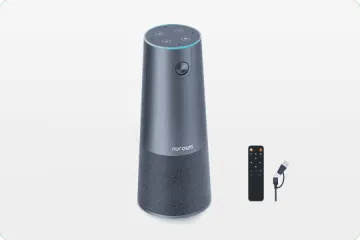
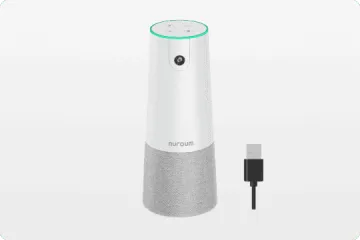
To make the trade-off analysis concrete, let's examine how a purpose-built all-in-one conference camera addresses each of the dimensions we have discussed. The Nuroum 360 Pro is designed specifically as a response to the limitations of using standalone webcams in meeting rooms, and its feature set maps directly to the pain points outlined throughout this article.
Designed for Full-Room Coverage
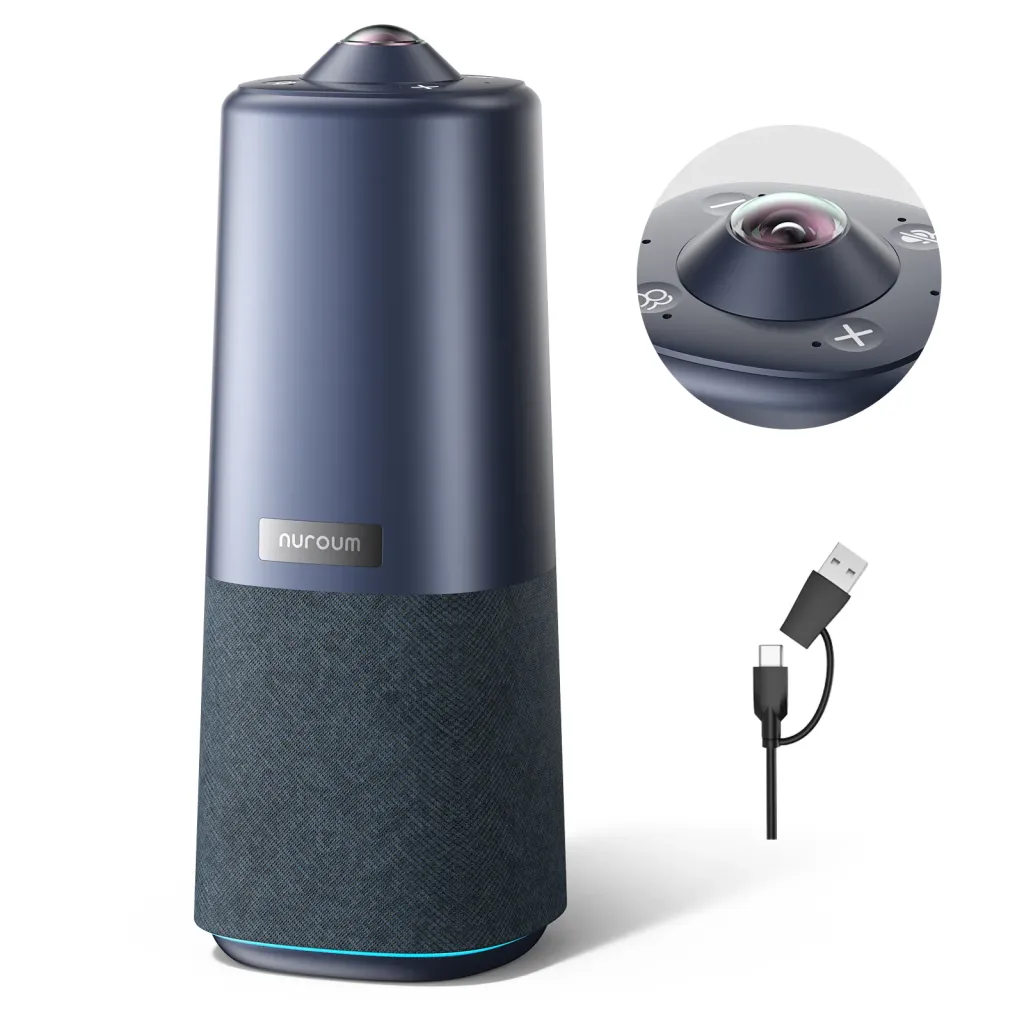
The Nuroum 360 Pro uses a 360-degree 1080P fisheye lens that captures the entire room from a central table position. Unlike a traditional webcam that must be aimed at whoever is speaking, the 360-degree approach eliminates the concept of "off-camera" entirely. Every seat at the table is within the camera's field of view at all times.
The 1080P @ 30FPS output strikes a deliberate balance: enough resolution and frame rate for clear, professional video while maintaining a bandwidth-efficient stream that works reliably on typical office networks. This is the "right resolution for the use case" principle in action — prioritizing meeting reliability over spec-sheet numbers.
Three AI-Powered Capture Modes for Different Meeting Types
Different meetings demand different visual framing. A brainstorming session with three people has fundamentally different camera needs than a presentation with a single speaker at a whiteboard. The Nuroum 360 Pro addresses this with three selectable AI modes:
- Discussion Mode: Identifies up to three active participants and frames them together in a single view. The AI tracks speaking patterns and adjusts the frame as the conversation moves between people. This is ideal for team stand-ups, planning sessions, and collaborative discussions where multiple voices need equal screen presence.
- Global Mode: Provides a fixed 115-degree forward-facing view, ideal for presentations, training sessions, or any meeting where a single presenter or a specific area of the room is the focal point. Whiteboard content, product demos, and slide presentations are captured cleanly without the camera searching for speakers.
- Presentation Mode: Automatically detects and follows the active speaker as they move around the room. If the presenter walks from the table to the whiteboard and back, the camera tracks the movement. Remote participants experience a dynamic, professionally produced view rather than a static shot of an empty chair while the speaker is somewhere off-screen.
Audio: One System, Not Three Devices
The six omnidirectional noise-canceling microphones provide a 16-foot (6-meter) audio pickup range — enough to cover every seat in a standard small-to-medium conference room. The microphone array uses beamforming to isolate active speech from ambient noise, addressing the keyboard-clicking and HVAC-hum problems that plague webcam microphones.
The built-in Hi-Fi speaker with full-duplex audio means there is no need for a separate speakerphone. Remote audio fills the room naturally, and in-room audio transmits cleanly to remote participants. The echo cancellation algorithm is tuned specifically to the device's acoustics — the microphone array and speaker are designed as a single audio system rather than as two components that happen to share an enclosure.
A remote control is included for in-room participants to adjust volume, mute the microphone, or switch between capture modes without touching the host computer. This solves the "who controls the meeting" friction that occurs when the host steps away from their laptop.
Plug-and-Play Across Every Major Platform
The Nuroum 360 Pro connects via a single USB cable and uses the UVC standard, making it driver-free and instantly compatible with Windows, macOS, and Linux. It works as a native video and audio device in Zoom, Microsoft Teams, Google Meet, GoToMeeting, Webex, and any other conferencing application that accepts a USB camera input.
A 1/4-inch tripod mount provides flexible placement options — tabletop in the center of the room, mounted on a tripod for elevated positioning, or attached to a wall bracket for permanent installation.
Pricing Context
At $630.00 (down from $699.99), the Nuroum 360 Pro occupies a purposeful position in the market. It costs more than a standalone webcam but replaces three separate categories of device — camera, microphone system, and speaker — while adding AI-powered framing that standalone webcams cannot provide regardless of price.
For teams considering the trade-off matrix from the previous section, this is the concrete embodiment of the "all-in-one" column. The question is not whether the device costs more than a single webcam — it does — but whether the combined cost of multiple devices plus the productivity cost of an inferior meeting experience exceeds the investment in a unified solution. For teams that have calculated that math honestly, the answer tends to favor integration.
Decision Framework: How to Choose the Right Device for Your Room
Rather than ending with a generic recommendation, let's build a practical decision framework that you can apply to your specific room and team.
Step 1: Define Your Room Profile
Start by answering three factual questions about your meeting room:
- How many people regularly sit at the table? Count only those in the room during a typical meeting, not the maximum capacity. If your answer is 1-2, a quality business webcam may be sufficient. If your answer is 3 or more, you have crossed the inflection point.
- How many remote participants join a typical meeting? If remote participation is rare, the camera's importance is lower. If every meeting has remote attendees, the camera's quality directly affects whether those people can participate effectively.
- What types of meetings happen in this room? Presentation-heavy meetings need different camera behavior than discussion-heavy meetings. A room used primarily for one-on-one video calls has different needs than a room used for team stand-ups with five people.
Step 2: Identify Your Binding Constraint
Every meeting room has one dimension that creates the most friction. Review the trade-off matrix and identify which single dimension is currently failing most frequently:
- Remote attendees cannot see or hear certain participants consistently → FOV and audio pickup
- Audio quality is poor (echo, keyboard noise, uneven levels) → Microphone architecture
- Setup takes too long or confuses users → Integration complexity
- Video quality degrades in afternoon light or with blinds drawn → Low-light performance
- The room system is frequently bypassed in favor of laptops → User experience friction
The binding constraint tells you which dimension to prioritize when evaluating options.
Step 3: Calculate the True Cost Comparison
When comparing a webcam-based setup against an all-in-one conference camera, include all costs — not just hardware purchase price:
Webcam-based setup: Webcam ($X) + External speakerphone ($Y) + USB hub and cables ($Z) + Estimated IT support time over 3 years + Estimated meeting productivity loss from suboptimal audio/video
All-in-one conference camera: Device cost ($A) + Zero peripheral costs + Zero IT burden + Optimal meeting experience from day one
The productivity cost of poor meetings is difficult to quantify precisely, but even a conservative estimate — 5 minutes of meeting time lost per meeting due to technical issues, across 10 meetings per week, at an average loaded labor cost — adds up to thousands of dollars per year. The hardware price difference shrinks considerably when this is factored in.
Step 4: Validate Compatibility
Ensure the device you select works across your technology stack:
- Operating systems: Windows, macOS, Linux — confirm native UVC support or manufacturer driver availability
- Meeting platforms: Zoom, Teams, Google Meet, Webex, GoToMeeting — confirm the device appears as a standard camera/audio input
- Room layout: Confirm cable length is sufficient for your table configuration, and mounting options (tabletop, tripod, wall mount) fit your space
Step 5: Apply the 80/20 Principle
The final filter: will this device solve 80% of your meeting friction with zero ongoing management overhead? A system that requires regular firmware updates, driver reinstalls, or audio recalibration will eventually be abandoned. The best meeting room technology is the technology that becomes invisible — participants join the room, the technology does its job silently, and the meeting runs on human interaction rather than technical troubleshooting.
Configured properly, with a conference room equipment upgrade guide that considers your full meeting room ecosystem, this is achievable. The key is choosing a device built for meeting rooms rather than adapting a personal computing peripheral to a group use case it was never designed to serve.
Frequently Asked Questions
Can I use a 4K webcam for a conference room?
A 4K webcam provides sharp individual video but cannot solve a meeting room's core challenges — narrow field of view, poor audio pickup for groups, and lack of intelligent framing. For rooms seating 3 or more people, an all-in-one conference camera with wide-angle lens, multi-microphone array, and built-in speaker delivers dramatically better group meeting experiences.
What is the difference between a business webcam and a conference camera?
A business webcam is designed for a single user at a desk and typically offers 78°-90° FOV, basic built-in microphones, and no speaker. A conference camera is purpose-built for meeting rooms and includes a wide-angle lens (110°+), multiple noise-canceling microphones, a Hi-Fi speaker with full-duplex audio, and AI-powered group framing modes.
Do I need a separate speaker if I use a USB webcam for group calls?
Yes. Most USB webcams do not have a built-in speaker, so you must connect a separate speaker or rely on your laptop's speakers, which are insufficient for a room of people. A webcam with speaker functionality — typically found in all-in-one conference cameras — eliminates this extra piece of hardware and simplifies your meeting room setup.
Are all-in-one conference cameras compatible with Zoom and Microsoft Teams?
Yes, most modern all-in-one conference cameras use USB plug-and-play connectivity with UVC standard protocol, making them driver-free and compatible with all major platforms including Zoom, Microsoft Teams, Google Meet, Webex, and GoToMeeting on Windows, macOS, and Linux.
Is a conference camera worth the higher price compared to a webcam?
For a meeting room used by multiple people, the higher price of a conference camera is justified by three factors: it replaces 2-3 separate devices (webcam, speakerphone, microphone), eliminates per-participant equipment costs, and delivers a professional meeting experience that makes remote participants feel included. For individual desk use, a business webcam remains the more cost-effective choice.