

































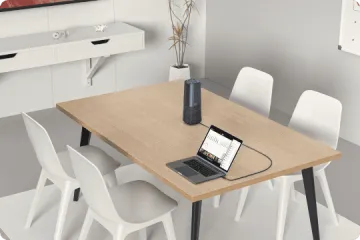



It's 9:47 AM. Your team is gathered around the conference table for the quarterly review. The remote VP is on screen — except she can't see three people sitting at the far end. The speakerphone is picking up air conditioner hum instead of voices. Someone's laptop webcam just froze. Again.
You glance at the tangle of cables snaking across the table: the webcam USB, the speakerphone Bluetooth dongle, the power adapter nobody can find when it's time to charge. It's not one thing that's broken. It's the whole fragile stack. And everyone on the call — especially the VP — is waiting.
This moment is why the video bar category exists. But here is what nobody tells you: simply buying something labeled "video bar" does not guarantee you escape this chaos. Some products wearing that label are little more than webcams with a tinny speaker bolted on. Others lock you into a single software platform. A few cost as much as a small server without delivering proportionally better meetings.
This guide is built for the moment after that 9:47 AM meeting — when you know you need to consolidate devices, but you are not sure whether consolidation actually simplifies things or just concentrates the failure points into one more expensive box. We will walk through what a video bar actually is, when combining devices adds hidden complexity, how to weigh your options with a clear trade-off matrix, and a step-by-step framework for choosing a solution that genuinely reduces friction instead of relabeling it.
What Is a Video Bar, Really?
Before you can decide whether to replace webcam and speakerphone with a single device, you need to understand what the term "video bar" actually covers — because the industry uses it loosely, and the gap between the best and worst products wearing that label is enormous.
The Core Definition
A video bar is an all-in-one conference device that combines three functions into a single hardware unit: a camera, a microphone array, and a speaker. It is designed to sit on a tabletop, mount below a display, or attach to a wall — becoming the single audiovisual hub for a meeting room. When you plug it into a computer via USB, the operating system recognizes it as a camera, a microphone, and a speaker simultaneously.
That is the technical definition. The practical one matters more: a well-designed video bar means you walk into a room, plug in one cable, and start a meeting with consistent audio and video that covers everyone at the table. No daisy-chaining. No driver installation. No crossing your fingers that the Bluetooth speakerphone paired correctly today.
The Spectrum: Not All Video Bars Are Equal
The market has fragmented into three rough tiers, and confusing them is the fastest way to overpay or under-buy:
| Tier | What You Get | Who It Fits |
|---|---|---|
| Basic webcam-with-speaker | A wide-angle webcam with a small built-in speaker and single mic. May cover 2-3 people in a quiet room. | Solo desks or tiny huddle spaces. Not a true meeting room device. |
| Mid-range video bar | Purpose-built camera with 110-120° FOV, 4-6 microphone array, dedicated speaker. Tabletop or display-mount design. | Small to medium rooms (4-8 people). The sweet spot for most teams. |
| Premium all-in-one system | Wide or 360° lens, advanced mic array with beamforming, Hi-Fi speaker, AI-powered framing and tracking. | Medium to large rooms where meeting equity is critical. |
The confusion is real. A product marketed as a "video bar" in the first tier will not solve the problems you read about in the opening scene. It will just move them into one device — a device that still cannot cover your room, still cannot pick up voices six feet away, and still leaves your remote colleagues squinting at a cramped frame.
When we talk about the video bar as a genuine upgrade from separate devices, we are talking about tiers two and three: hardware built from the ground up to serve a meeting room, not a webcam that happened to grow a speaker.
Why Video Bars Emerged Now
The category did not come from nowhere. Three forces pushed it into the mainstream:
- Hybrid work became permanent. The meeting room is no longer the default. Every room with a display is potentially a conference room, and every meeting has remote attendees who expect to see and hear everyone clearly.
- Cable fatigue hit a breaking point. In 2020, most meeting rooms ran a webcam plus a Bluetooth speakerphone. In 2026, teams are tired of managing two devices, two cables, two driver updates, and two things that can fail right before the CEO joins.
- Camera and microphone technology matured. Wide-angle lenses, beamforming microphone arrays, and on-device AI processing that were once exclusive to $3,000 room systems are now available in devices at a fraction of that cost.
The result is a category that genuinely solves real problems — but only if you pick the right product for your specific room and workflow. The rest of this guide is about making that choice well.
The Consolidation Paradox
Here is the central tension this guide exists to resolve: consolidating devices does not automatically reduce complexity. Sometimes it just moves the complexity somewhere you cannot see it until a meeting goes wrong.
When Consolidation Adds Complexity
The promise of replacing webcam and speakerphone with one video bar is seductive: fewer cables, fewer devices, fewer things to manage. But consolidation can backfire in specific, predictable ways:
The single-point-of-failure problem. With separate devices, if your webcam dies, you can still run audio-only. If your speakerphone battery drains, you can fall back to the laptop speakers. With a video bar, one hardware failure takes down your entire meeting capability. This is fine if the device is reliable — and disastrous if it is not.
The upgrade lock-in trap. When you own a separate webcam and speakerphone, you can upgrade either one independently. Better camera this year. Better speakerphone next year. With a video bar, upgrading anything means replacing everything. This matters most if your room configuration changes — adding seats, changing the table layout, or splitting a room.
The platform vendor lock. Some video bars — particularly products in the ecosystem that includes the Neat Bar — are designed to work optimally with a specific software platform. If your organization standardizes on Microsoft Teams and the video bar you bought treats Teams as a second-class citizen, you have traded hardware simplicity for software friction. Before choosing any video bar, verify that it works equally well across every platform your team actually uses.
The coverage mismatch. A video bar with an 80-degree field of view cannot cover eight people sitting across a 12-foot table, no matter how good its microphone is. When you buy separate devices, you can pair a wide-angle camera with a long-range speakerphone. When you buy a video bar, you get whatever FOV and pickup range the manufacturer decided to bundle. If those specs do not match your room, consolidation has made your meetings worse, not better.
When Consolidation Actually Simplifies
The paradox has a flip side: consolidation does simplify — dramatically — when you pick a video bar that honestly matches your room. The simplification is real in these conditions:
- The device covers your entire seating area with adequate field of view and microphone range
- It works driver-free on every operating system your team uses
- It is platform-agnostic — recognized as a standard USB camera, mic, and speaker by all conferencing software
- The build quality and warranty mean you are not trading two moderately reliable devices for one unreliable one
Under these conditions, consolidation eliminates real pain: the five-minute pre-meeting scramble to configure audio input and output, the mystery of which device Windows decided to default to today, the moment when someone unplugs the speakerphone to charge it and takes down the audio mid-call.
The question is not "should I consolidate?" The question is "does this specific video bar actually deliver on the simplification promise for my specific room?"
The Upgrade Equation: Trade-off Matrix
To answer the question "should I get a video bar and which one?" you need to evaluate your current setup against the alternatives. The matrix below compares three configurations across the dimensions that actually affect your daily meeting experience.
The three configurations:
- Separate Devices: A dedicated webcam plus an external speakerphone (USB or Bluetooth). This is the most common current setup for teams that have already moved beyond the built-in laptop webcam and mic.
- Basic Video Bar: An entry-level or mid-range device that combines camera, mic, and speaker in one unit but may have limited FOV, shorter mic range, or basic audio processing.
- True All-in-One: A purpose-built conference device with wide/360° lens coverage, advanced multi-microphone array with noise cancellation, full-duplex audio, and AI-powered meeting features.
Trade-off Comparison
| Dimension | Separate Devices | Basic Video Bar | True All-in-One |
|---|---|---|---|
| Total Cost of Ownership | Medium — lower upfront but two devices to maintain and eventually replace | Low to medium — one purchase but may need early replacement | Medium to high — higher initial cost, lower long-term management cost |
| IT Management Overhead | High — two devices, two firmware tracks, two potential failure points | Medium — one device but may still need driver updates | Low — plug-and-play, often driver-free, fewer support tickets |
| Meeting Start Time Friction | High — configure camera, select audio I/O, test both | Medium — one device but may need audio level adjustments | Low — plug in one cable, recognized immediately, auto-optimized |
| Upgrade Path Flexibility | High — upgrade camera or speakerphone independently | Low — replace entire unit to improve any component | Low — replace entire unit, but less likely to need incremental upgrades |
| Audio Quality & Coverage | Varies — good speakerphone can cover 10-15 ft | Limited — often 8-10 ft pickup, basic noise reduction | Strong — 15-20 ft pickup, multi-mic beamforming, AI noise cancellation |
| Video Field of View | Varies — can choose ultra-wide webcam if needed | Typically 90-110° — marginal for wider tables | 115-360° — covers entire room, includes AI framing |
| Cable & Device Count | 2-3 cables, 2 devices on the table | 1 cable, 1 device | 1 cable, 1 device |
| Platform Compatibility | Universal — standard USB devices work everywhere | May vary — some are platform-optimized, confirm before buying | Should be universal — verify USB plug-and-play across platforms |
| Failure Resilience | Medium — one device failure leaves partial capability | Low — single failure point for all AV | Low — single failure point, mitigated by build quality and warranty |
| Remote Participant Experience | Inconsistent — audio/video not synchronized, variable quality | Improved — synchronized but may lack advanced features | Excellent — AI modes adapt camera and audio to meeting dynamics |
Reading the Matrix: Where Separate Devices Still Win
There is one scenario where the separate-devices approach remains genuinely superior: when your room configuration changes frequently. If you move between different-sized rooms, or your table arrangement varies from meeting to meeting, the flexibility to swap in a wider camera or a longer-range speakerphone independently has real value. The all-in-one video bar trades that flexibility for simplicity — a trade most teams are happy to make, but not all.
For everyone else — teams with a dedicated meeting room, a consistent participant count, and a desire to stop troubleshooting AV equipment before every call — the true all-in-one configuration wins across most dimensions. The key is making sure the specific device you choose actually fits those dimensions for your room.

Real-World Scenarios: Where Video Bars Deliver
Abstract comparisons only go so far. Let's walk through three specific meeting scenarios where an upgrade from speakerphone to video — consolidating into a single video bar — changes the daily experience.
Scenario 1: The 6-Person Team Room
Current setup: A 90-degree wide-angle webcam perched on top of the wall-mounted display, paired with a Bluetooth speakerphone in the center of the table. Eight-foot table. Windows laptop running Microsoft Teams.
What goes wrong: The webcam crops out the two people sitting at the ends of the table. The speakerphone picks up the first four voices fine but drops the fifth and sixth. Someone unplugged the speakerphone to charge it overnight and forgot to plug it back in — discovered 30 seconds into the weekly standup. The Bluetooth re-pairing process takes two minutes of dead air.
How a video bar fixes it: A single USB-C cable into the room laptop. The device sits below the display. A 115° or wider lens captures the full table width. A six-microphone array picks up voices from every seat. No Bluetooth to re-pair. No second device to charge. The meeting starts in 20 seconds instead of five minutes.
The key spec that matters here: Field of view. If the video bar cannot physically see everyone at the table, nothing else matters. For a six-person room with an eight-foot table, you need at least 110° FOV — and 115° or wider is better.
Scenario 2: The Converted Huddle Space
Current setup: A single USB webcam on a tripod, relying on the laptop's built-in microphone and speakers. Four people max. Used for ad-hoc calls, candidate interviews, and quick syncs.
What goes wrong: The laptop microphone cannot distinguish between the person speaking and the HVAC vent three feet away. Remote participants hear every keystroke and chair squeak. The laptop speaker is too quiet for the person sitting farthest from it. The webcam works fine — but video quality without synchronized, clear audio is not a meeting, it is a silent film with bad subtitles.
How a video bar fixes it: A compact all-in-one unit replaces the webcam tripod. The built-in microphone array with noise cancellation filters out the HVAC hum. The dedicated speaker fills the small room clearly. One device, one cable, no laptop audio gymnastics. The space goes from "barely usable for calls" to "fully functional meeting room" in the time it takes to swap one USB plug.
The key spec that matters here: Microphone quality and noise cancellation. In small, acoustically untreated spaces, the mic array's ability to reject ambient noise is more important than raw pickup range.
Scenario 3: The Multi-Purpose Conference Room
Current setup: A high-end PTZ camera on one wall, a separate ceiling microphone array, and in-ceiling speakers — a professionally installed system.
What goes wrong: Nothing, technically. The system works. But only one person in the office knows how to start it. When that person is out sick, the room becomes a very expensive whiteboard space. The control panel has 14 buttons, and pressing the wrong one routes audio to a different floor.
How a video bar simplifies: Replace the entire multi-component system with a single video bar and a USB connection. The feature set — wide-angle lens, multi-mic array, dedicated speaker with full-duplex audio — covers the same needs with one-tenth the complexity. Anyone can walk in, plug in a laptop, and start a meeting on any platform. The trade-off is that you lose the cinematic production quality of a professional PTZ camera, but you gain a room that actually gets used.
The key spec that matters here: Full-duplex audio and platform compatibility. The device must handle simultaneous talking and listening without cutting out, and it must work immediately with whatever conferencing software any team member brings.
The Pattern Across Scenarios
Notice what these three scenarios share: the video bar solves the problem not by adding features, but by removing failure modes. Fewer devices. Fewer cables. Fewer pairing steps. Fewer configuration decisions. The value is in what you stop having to think about.
This is also why the consolidation paradox is so important: if the video bar you choose has its own reliability problems, limited compatibility, or inadequate coverage, you have not removed failure modes — you have just renamed them.
Your Video Bar Decision Framework
You now understand what a video bar is, when consolidation helps versus hurts, and how the trade-offs play out in real rooms. Here is a six-step framework to take from evaluation to purchase.
Step 1: Measure Your Room
Walk into the room with a tape measure. Write down:
- Room dimensions (length x width)
- Table dimensions and seating positions
- Display position and size
- Distance from the display to the farthest seat
These numbers determine the minimum field of view and microphone pickup range your video bar needs. If the farthest seat is 10 feet from where the device will sit, you need at least 10 feet of audio pickup range — ideally more, because real-world acoustics are less forgiving than spec sheets.
Step 2: Count Your Participants
Be specific: how many people are typically in the room? How many join remotely? The in-room count determines camera coverage needs. The remote count determines how important meeting equity is — the more remote participants, the more you need AI features like speaker tracking and auto-framing to keep them engaged.
As a rough guide:
- 1-4 people: Most video bars with 90°+ FOV will work
- 5-8 people: Need 110°+ FOV and at least a 4-microphone array
- 8-12 people: Need 115°+ or 360° FOV, 6+ microphones, and AI framing
- 12+ people: Consider whether a single video bar is sufficient or if you need a more advanced system
Step 3: Audit Your Pain Points
List every AV-related frustration from the last month. Be brutally honest:
- "Audio cuts out when two people talk at once" → You need full-duplex audio
- "Remote people can't see who's talking" → You need speaker tracking or discussion mode
- "Setup takes more than 2 minutes" → You need true plug-and-play
- "We can't use the room when [specific person] is out" → You need zero-training simplicity
- "The microphone picks up the HVAC/street noise/adjacent room" → You need noise cancellation
Your pain point list is your requirements document. Every feature your video bar has should trace back to a specific pain point. Features without a matching pain point are just cost.
Step 4: Verify Platform Compatibility
This step is deceptively simple — and where many teams make expensive mistakes. Confirm the video bar works with:
- Your primary conferencing platform (Zoom, Teams, Google Meet, Webex, GoToMeeting)
- Any secondary platforms your team uses for client calls or cross-org meetings
- Your operating systems (Windows, macOS, Linux — all three if your team is mixed)
The safest approach: choose a video bar that uses standard USB UVC/UAC protocols and requires no proprietary drivers. These devices appear as a generic camera, microphone, and speaker to any operating system and any conferencing application. Some well-known brands — including products in the Neat Bar category — offer tighter integration with specific platforms at the cost of reduced flexibility across others. Decide whether platform-specific features are worth the compatibility trade-off for your organization.
Step 5: Evaluate Audio Quality Holistically
Audio matters more than video for meeting effectiveness. People will tolerate a mediocre camera feed. They will not tolerate not being able to hear or be heard. Evaluate audio across three dimensions:
- Pickup range: Can the microphones reach every seat?
- Noise handling: Does the device filter out room noise, keyboard clicks, and paper shuffling?
- Full-duplex performance: Can people talk and listen simultaneously without audio cutting out?
If you have the opportunity to test a device, the simplest audio test is also the most revealing: have two people talk at the same time from opposite ends of the table. If the remote side hears both voices clearly without dropouts or artifacts, the audio system is solid. If not, keep looking.
Step 6: Calculate True Total Cost
Do not compare the price of a video bar to the price of a single webcam. That is the wrong comparison. Compare it to what you would spend to achieve equivalent capability with separate devices:
- A conference-grade webcam with 110°+ FOV
- A speakerphone with 15+ ft pickup range and noise cancellation
- Cables, mounts, and any needed USB hubs
- The IT time spent configuring and troubleshooting two devices per room over a year
When you run this calculation honestly, a quality video bar in the $500-$700 range often comes out ahead of separate components that deliver the same meeting experience — before you even account for the time savings from simplified setup.
If you are currently in the process of conference room equipment upgrade guide, understanding these cost dynamics is essential to making a decision that holds up over time rather than just looking good on the purchase order.
A Different Approach to All-in-One
The decision framework above gives you a way to evaluate any video bar on the market. Here is how one device maps to those criteria — not as the only answer, but as a concrete example of what "checking all the boxes" looks like in practice.
The Nuroum 360 Pro: Designed for What Most Meeting Rooms Actually Need
The Nuroum 360 Pro is a purpose-built all-in-one video conference camera that takes a different approach to the video bar category. Instead of a traditional wide-angle lens that captures a rectangular wedge of the room, it uses a 360-degree 1080P fish-eye lens — meaning it can see the entire room, not just the people directly in front of the display.
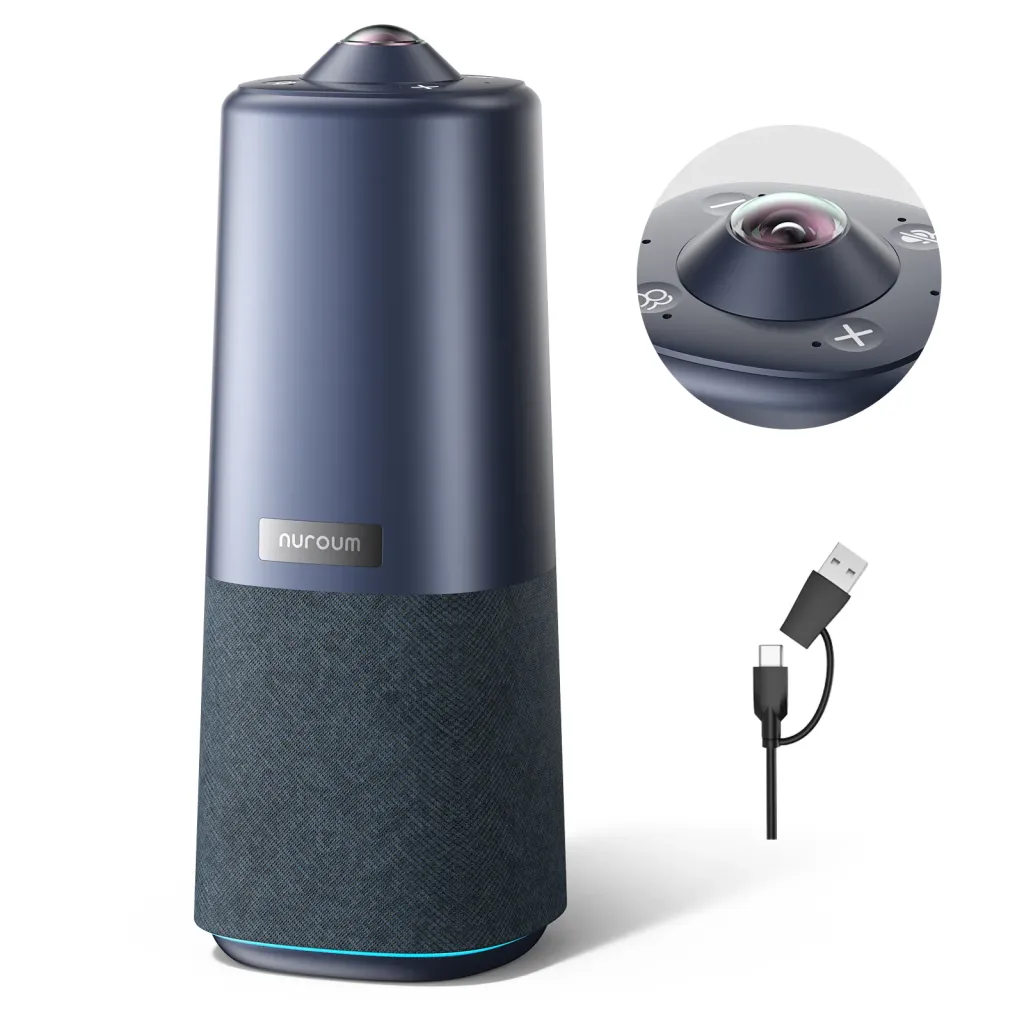
Here is how it maps to the decision framework criteria:
Room coverage: The 360-degree lens eliminates the field-of-view question entirely. Whether your table is round, rectangular, or U-shaped, the camera sees every seat. For standard front-of-room video, the Global Mode delivers a 115° FOV — wide enough for an eight-foot table with people at both ends. If your room layout is unconventional or you want the flexibility to rearrange seating without worrying about camera angles, 360-degree coverage removes that constraint.
Audio: Six omnidirectional microphones with noise cancellation pick up voices within a 16-foot (6-meter) radius. The full-duplex audio system handles simultaneous talking and listening — the scenario where most budget speakerphones and basic video bars fall apart. The integrated Hi-Fi speaker is purpose-tuned for voice frequencies, so speech comes through clearly at normal meeting volume.
AI features: Three AI-powered modes adapt the device to different meeting types. Discussion Mode automatically frames and highlights up to three active speakers — addressing the core pain point of remote participants struggling to follow who is talking in a group conversation. Presentation Mode locks onto the active speaker and follows them if they stand up and move. Global Mode provides the full 115° room view. You are not stuck with a single framing behavior; the device shifts based on how the meeting is actually being run.
Setup simplicity: USB plug-and-play with no driver installation required. Connect one cable to a Windows, macOS, or Linux machine, and the device appears as a camera, microphone, and speaker. It works immediately with Zoom, Microsoft Teams, Google Meet, GoToMeeting, and Webex — no platform-specific configuration needed.
Installation flexibility: The device includes a standard 1/4-inch tripod mount, so it can sit on a tabletop tripod, be mounted on a wall, or attach to a display mount. A remote control is included for adjusting volume, muting, and switching AI modes without touching the connected computer.
Price: $630.00 — positioned in the mid-to-upper range of the video bar market, below premium room systems but above basic webcam-with-speaker combinations.
Worth noting: At $630.00 (reduced from $699.99), the 360 Pro intentionally avoids the "our video bar only works well with our preferred platform" approach that some competitors take. The trade-off is that you do not get deep OS-level integration with any single platform. The benefit is that it works equally well with all of them — a meaningful advantage for teams that use Teams internally, Zoom for client calls, and Google Meet for partner meetings.
For a deeper look at how purpose-built conference hardware differs from standard business webcams, understanding the category distinctions helps clarify what you are paying for and what you are not.
Where Video Bars Fit in Your Meeting Ecosystem
A video bar does not exist in isolation. It is part of a broader meeting technology stack, and understanding where it fits helps you make smarter decisions about what to buy and how to integrate it.
Video Bar vs. Conference Camera vs. Webcam
The lines between these categories have blurred, but they serve different use cases:
- A webcam (even a premium business webcam) is designed for single users at desks. It sits on top of a monitor, has a narrow FOV (typically 65-90°), and relies on built-in or basic microphones. It is for personal video calls, not meeting rooms.
- A conference camera is a step up: wider FOV, better optics, sometimes with basic speaker tracking. But it typically does not include integrated audio — you still need a separate speakerphone or microphone system.
- A video bar combines both into one unit. It is the conference room equivalent of a soundbar for a TV: one device that handles the entire audio-visual experience for a group.
If you are still running separate devices and wondering whether the upgrade is worth it, the complete conference room equipment upgrade guide walks through the decision in more detail, including what you can expect to gain — and what you might miss — when you consolidate.
Small Room Considerations
Small rooms (typically 4-8 people) are where the video bar category shines brightest. These spaces rarely justify the cost or complexity of multi-component room systems, but they need better quality than a laptop webcam and built-in mic can provide. A single video bar hits the sweet spot: enough camera coverage, enough microphone range, enough speaker volume — all from one device and one cable.
For specific small-room guidance — including placement tips and what to look for in compact spaces — the small room solutions page covers the practical setup details.

If You Are Comparison Shopping
The video bar market includes a wide range of products at different price points and with different design philosophies. Some, like products in the Neat Bar lineup, are known for tight integration with specific platforms. Others emphasize universal compatibility. Some prioritize a traditional front-facing camera design; others, like the Nuroum 360 Pro, use a 360-degree approach.
If you are already considering established brands and want to understand the full landscape, our guide to Logitech MeetUp and Rally alternatives compares different approaches to the video bar and all-in-one conference camera category — useful context whether or not Logitech is on your shortlist.
For browsing the full range of options, the conference camera category includes everything from compact video bars to larger room systems.
Frequently Asked Questions
What is a video bar, and how does it differ from a standard webcam?
A video bar is an all-in-one device that combines a camera, microphone array, and speaker into a single unit designed to sit below or above a display. Unlike a standard webcam — which provides only video capture — a video bar handles the complete audio-visual chain for a meeting room. The best video bars include wide-angle lenses, multi-microphone arrays with noise cancellation, and full-duplex speakers that let people talk and listen simultaneously without audio cutout. The category emerged from the need to simplify meeting room setups that had grown into tangled collections of separate cameras, speakerphones, and cables.
Can a video bar truly replace both my webcam and speakerphone?
Yes, a properly designed video bar can replace both a webcam and a speakerphone — provided you choose one that matches your room size and meeting needs. The key is verifying that the camera's field of view covers your seating area and that the microphone pickup range reaches every participant. A high-quality video bar eliminates the cable clutter of managing two separate devices while delivering synchronized audio and video that separate components often struggle to achieve. However, some lower-end products labeled as video bars are essentially webcams with a small speaker added and will not meaningfully replace a dedicated speakerphone.
Is a video bar worth the cost for a small or medium meeting room?
For most small to medium rooms hosting 4-10 people, a video bar typically delivers better value than buying a separate conference camera and speakerphone. The total cost of a quality video bar often comes in lower than purchasing equivalent standalone components, and the reduction in IT management overhead — fewer cables, drivers, and troubleshooting points — adds ongoing savings. The break-even point versus separate devices usually occurs within the first year of daily use. The value proposition weakens for very small spaces (1-2 people) where a laptop setup may suffice, or very large spaces where a single video bar cannot cover the full room.
Will a video bar work with my existing video conferencing platform?
Most USB plug-and-play video bars work universally with all major platforms including Zoom, Microsoft Teams, Google Meet, Webex, and GoToMeeting. The device appears to your computer as a standard USB camera, microphone, and speaker, requiring no proprietary drivers or special software. However, some platform-specific video bars lock you into a single ecosystem — a product designed primarily for Microsoft Teams, for example, may offer limited functionality or a degraded experience on Zoom. Always confirm universal USB UVC/UAC compatibility before purchasing if your team uses multiple conferencing platforms or may switch platforms in the future.
What should I look for when choosing a video bar for my meeting space?
Evaluate a video bar across five key dimensions. First, room coverage: the camera's field of view and microphone pickup range must physically cover every seat in the room. Second, audio quality: look for multi-microphone arrays with active noise cancellation and full-duplex audio that lets people talk and listen simultaneously. Third, AI features: speaker tracking, auto-framing, and discussion modes significantly improve the experience for remote participants. Fourth, platform compatibility: USB plug-and-play ensures the device works with any conferencing software on Windows, macOS, or Linux. Fifth, total cost: compare the video bar price against the combined cost of separate components that would deliver equivalent coverage and quality. If possible, test the device in your actual room before committing — no spec sheet can fully predict how a device will perform in your specific acoustic and lighting environment.
The Bottom Line
The video bar category exists because the old way — webcam on the display, speakerphone on the table, cables everywhere, configuration guesswork before every call — stopped being acceptable the moment hybrid work became permanent. Teams need meeting rooms that work reliably, start quickly, and make remote participants feel present rather than tolerated.
The challenge is that "video bar" is a label, not a guarantee. Products wearing it range from glorified webcams to genuinely transformative conference devices. The difference is not just price — it is whether the device was designed for the specific room you are putting it in.
The decision framework in this guide — measure your room, count your participants, audit your pain points, verify compatibility, evaluate audio, calculate true cost — is designed to cut through the marketing and match a device to your actual needs. If you do that work honestly, the answer to "should I upgrade to a video bar?" becomes clear. And if the answer is yes, you will know exactly which criteria to prioritize so that consolidation genuinely simplifies your meeting experience instead of just rebranding your existing frustrations.
The right video bar does not add features. It removes friction. And in a world where every meeting has remote participants, removing friction is the most valuable feature of all.