







In today’s digital landscape, communication is no longer confined to smartphones. With Voice Over Internet Protocol (VoIP) technology, you can now call phone from computer using nothing but an internet connection. This shift offers a more versatile and cost-effective way to stay connected, whether for personal check-ins or professional collaboration.
Beyond simple convenience, placing calls from your PC unlocks powerful features like call recording, digital voicemail, and seamless integration with your existing business tools. In the following sections, we’ll explore built-in OS features, the best third-party VoIP apps, and essential hardware tips to help you transform your computer into a high-performance communication hub.

Method 1: Use Your Computer's Built-In Features
Before searching for new software, check the operating system you are already using. Both Windows and Apple have developed robust, pre-installed tools to link your desktop directly to your mobile device without any additional downloads.
For Windows Users: Microsoft Phone Link
If you are using Windows 10 or Windows 11 and own an Android smartphone (or a compatible iPhone), the Phone Link app is your best option. Since it is built into the Windows ecosystem, you can usually find it simply by searching your Start menu.
- How it works: It connects your PC and your phone via Bluetooth and Wi-Fi.
- The Benefit: You can dial numbers directly from your Windows desktop screen, access your contact list, and even reply to SMS text messages using your full-sized keyboard. The audio is seamlessly routed through your computer's speakers and microphone.
For Apple Users: Mac Continuity (FaceTime)
The Apple ecosystem makes cross-device calling incredibly smooth. This is a native feature of macOS, meaning there is absolutely nothing to download. If your Mac and iPhone are signed into the same Apple ID and connected to the same Wi-Fi network, you can use the FaceTime app to make regular cellular calls.
- How it works: Open the FaceTime app on your Mac, enter any standard phone number, and hit the audio call button.
- The Benefit: Your Mac effectively acts as a giant speakerphone connected to your iPhone's cellular plan. It’s the perfect solution for keeping your phone call from pc integrated with your other Apple devices.
Method 2: Free Third-Party VoIP and Chat Apps
If you do not want to link your mobile phone to your computer, or if you need to make international calls over Wi-Fi without incurring roaming charges, Voice over Internet Protocol (VoIP) apps are the answer.
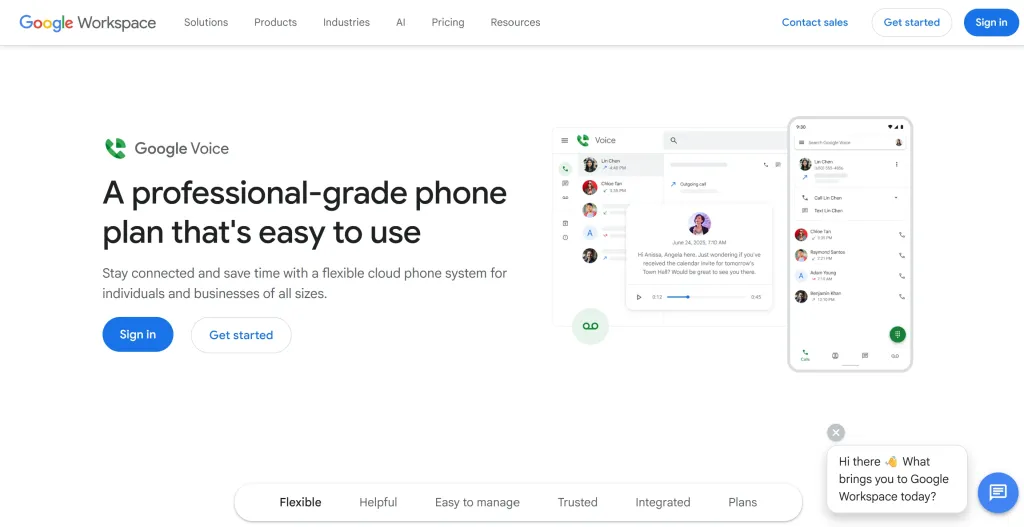
1. Google Voice (Best for Professional Privacy)
- How to get it: Access it directly via your web browser at voice.google.com and sign in with your Google account.
- How it works & Cost: It provides a free secondary phone number to make unlimited calls to standard mobile and landline numbers within the US and Canada at no cost.
- The Benefit: Ideal for freelancers who want to keep their personal cell phone numbers private while managing a professional business line entirely from their PC.
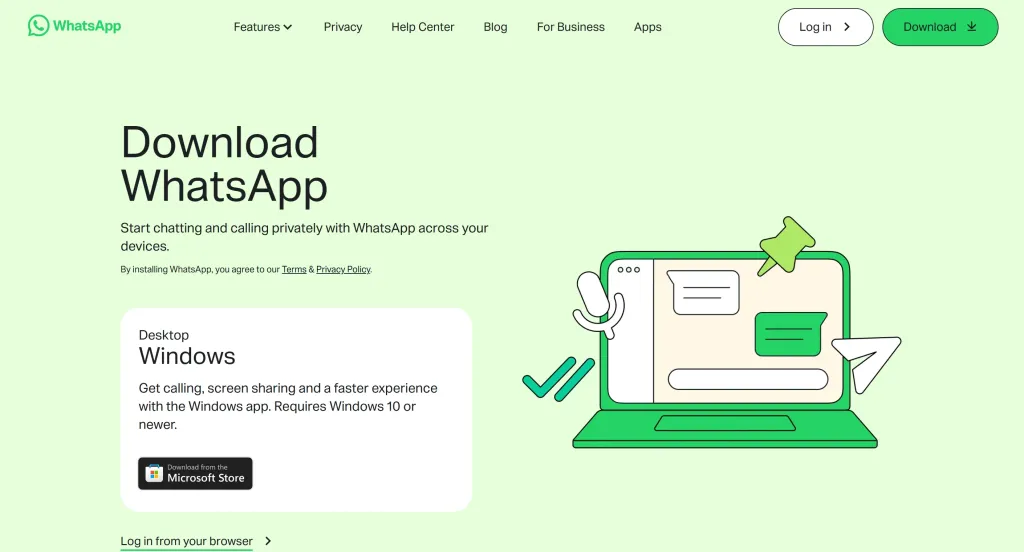
2. WhatsApp Desktop (Best for Global Reach)
- How to get it: Download WhatsApp Desktop for Windows/Mac or use the no-install WhatsApp Web version.
- How it works & Cost: It is completely free for global use, allowing you to initiate high-definition encrypted voice or video calls to any other WhatsApp user using your internet connection.
- The Benefit: It is the most widely used messaging platform globally, making it the most reliable way to call from pc to international clients or family members.
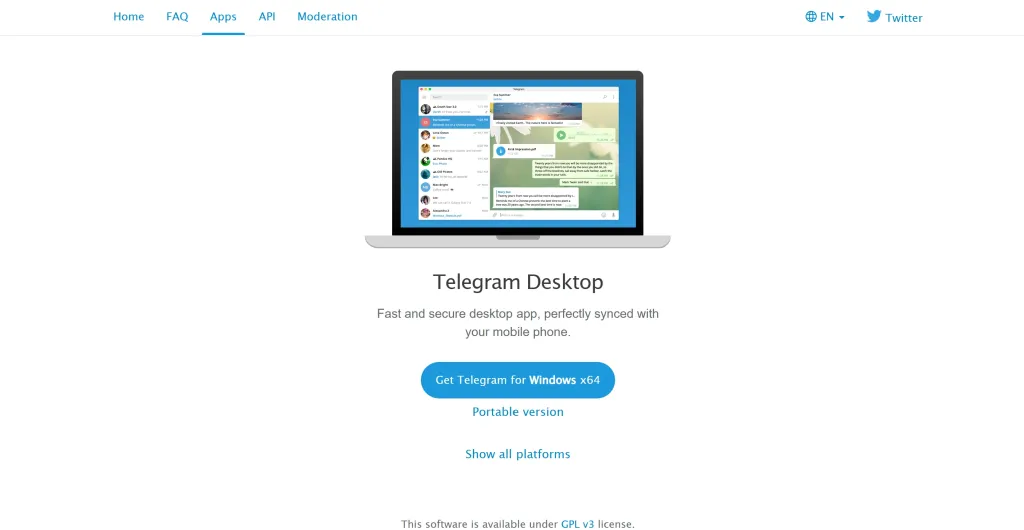
3. Telegram Desktop (Best for High-Speed Connection)
- How to get it: Download the official Telegram Desktop client from their website.
- How it works & Cost: Like WhatsApp, Telegram calls are 100% free and use peer-to-peer technology to ensure high-quality audio without consuming cellular minutes.
- The Benefit: Known for its speed and security, it provides a stable alternative for calling international contacts who prioritize privacy and fast synchronization across devices.
4. Skype (Best for International Landlines)
- How to get it: Download the application from the official Skype website.
- How it works & Cost: While Skype-to-Skype calls are free, you can purchase low-cost Skype Credit to dial real landlines or mobile numbers that do not have any apps installed.
- The Benefit: It remains the most versatile and cost-effective solution for reaching traditional phone numbers or clients who do not use modern messaging platforms.
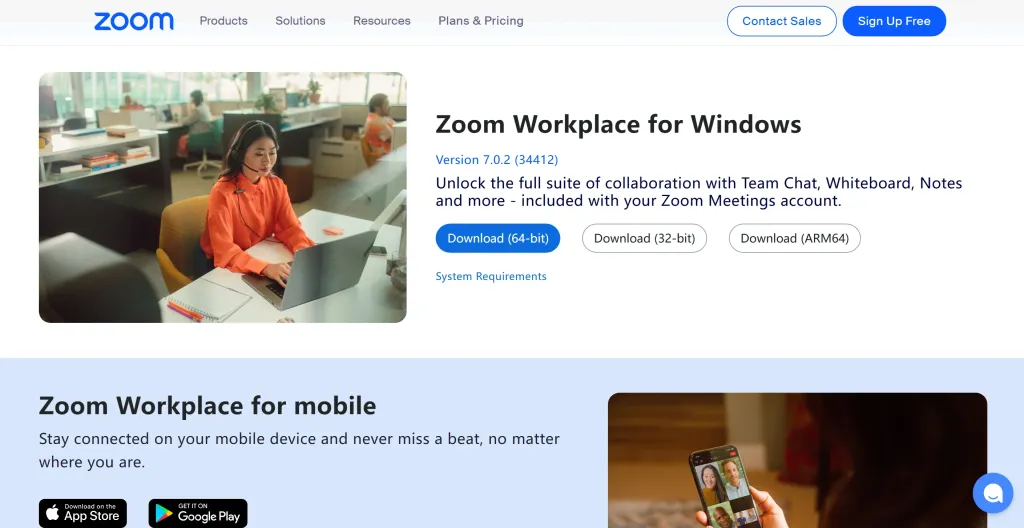
5. Zoom Workplace (Best for Integrated Collaboration)
- How to get it: Download the Zoom Desktop Client from the Zoom official site.
- How it works & Cost: Through "Zoom Phone" (requires a subscription), you get a dedicated Dial Pad that allows you to call standard external phone numbers just like a regular telephone.
- The Benefit: It allows you to transition from a video meeting to a standard phone call from pc instantly, keeping all your business communication within one professional interface.
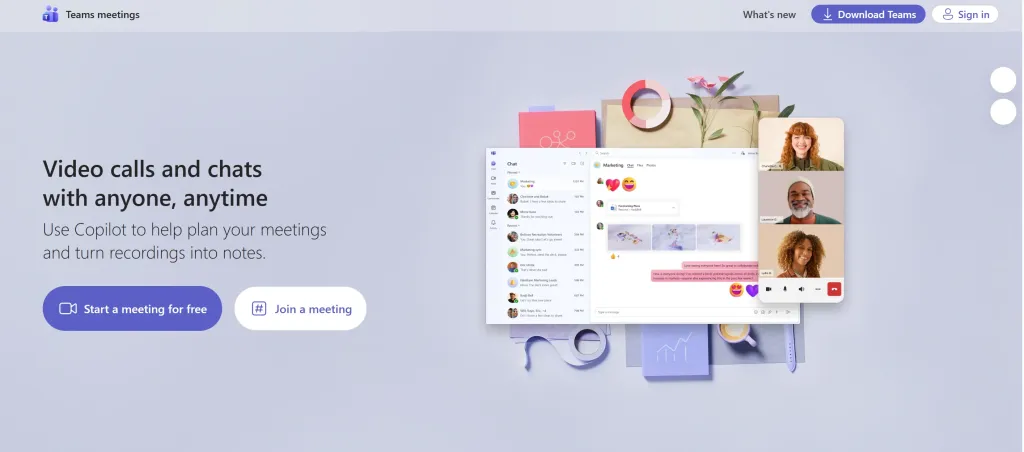
6. Microsoft Teams (Best for Business Ecosystems)
- How to get it: Download the Microsoft Teams desktop app or access it via your Microsoft 365 account.
- How it works & Cost: For organizations with a "Phone System" license, Teams provides a full-featured keypad for dialing external numbers via the cloud.
- The Benefit: It is the ultimate choice for corporate users, as it integrates your call history, contacts, and recordings directly into your company’s existing Microsoft workflow.
The Hidden Trap of PC Calls: Audio Quality
While platforms like Google Voice or Skype make it incredibly simple to initiate a phone call from computer, software alone cannot guarantee a successful conversation. For anyone with professional needs—whether you are closing a sale, conducting an interview, or coordinating with a team—audio quality directly impacts your professional image and the effectiveness of your communication.
The primary pitfall is the hardware bottleneck of the laptop itself. If you browse communities like r/WFH or r/MicrosoftTeams, a common frustration repeatedly surfaces:
"My client asked if I was calling from a bathroom because of the echo." "My team can hear my mechanical keyboard louder than my voice."
When you use your laptop's built-in microphone, it picks up everything—the acoustic echo of your own voice bouncing off the screen, the aggressive clacking of your keys, the roar of a delivery truck outside, or a dog barking in the next room. To the person on the other end, these distractions make the conversation sound incredibly chaotic, strained, and unprofessional.
This happens because standard laptop microphones are "omnidirectional," meaning they are designed to pull in ambient noise from a 360-degree radius rather than focusing on your speech. While this sensitivity is fine for a casual chat, it fails to provide the isolation required for a high-stakes business call.
The Solution: Switching to Dedicated Audio Hardware

To bridge the gap between "making a call" and "having a professional conversation," you must bypass the internal hardware that captures unwanted noise. The most effective way to ensure your voice remains the focus is to utilize dedicated audio isolation technology.
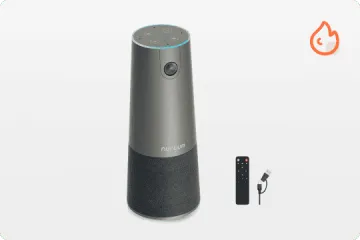
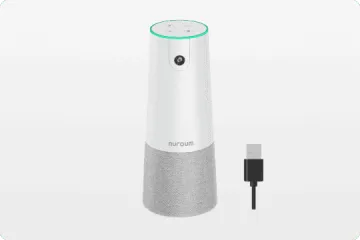
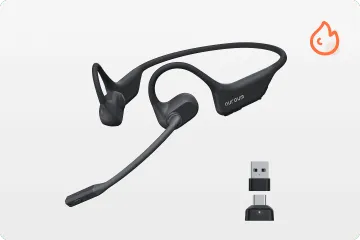
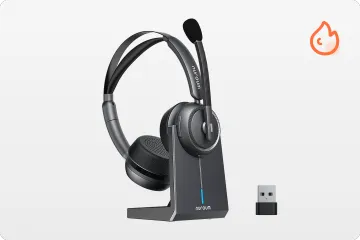
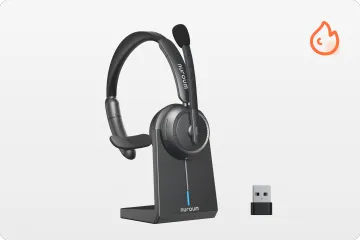
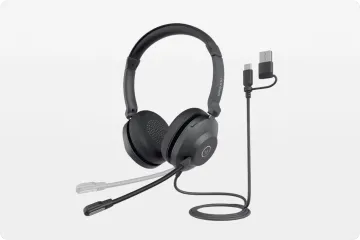
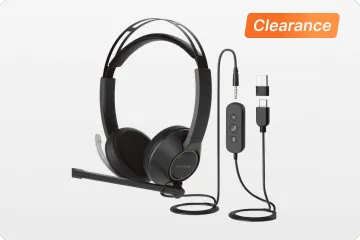
Upgrading to a professional headset provides a professional fix by utilizing AI-powered Environmental Noise Cancellation (ENC). Unlike omnidirectional laptop mics, this technology identifies your unique "voice footprint" to filter out background interference like fans or office chatter. This ensures every phone call from pc remains clear and stable, regardless of your surrounding environment.
Furthermore, using professional hardware with a dedicated USB dongle—rather than relying on standard system Bluetooth—helps avoid the "Mute Sync" glitches and connection drops frequently discussed in tech forums. This ensures your hardware is as reliable as the software you have chosen, allowing your noise-canceling setup to deliver a seamless experience that built-in audio simply cannot provide.
Conclusion
Transitioning your communication to your desktop is a powerful way to streamline your workflow and centralize your professional life. Whether you leverage the native ease of Mac Continuity, the seamless integration of Windows Phone Link, or the global reach of VoIP apps, the ability to call from your computer allows you to keep your hands free and your focus sharp.
By matching these versatile software methods with the right audio setup, you can transform your computer into a high-performance communication hub. Say goodbye to the smartphone shuffle and take full control of your desk communication today.
FAQs
1.Exactly how to make phone calls from mac computer?
If you own an iPhone and a Mac, you can use Apple's Continuity feature. Ensure both devices are on the same Wi-Fi network and signed into the same Apple ID. Open the FaceTime app or Contacts app on your Mac, find the person you want to dial, and click the phone icon to route the call through your Mac's audio.
2.Can I call cell phone from computer for free?
Yes, if you use internet-based platforms like WhatsApp Desktop or Telegram, you can call another person's cell phone (if they have the app) completely for free. Alternatively, Google Voice allows free calls to standard mobile numbers within the US and Canada.
3. How can I ensure the highest quality for my phone calls from PC?
A successful call relies on a combination of a stable internet connection, reliable software, and clear audio. While the software establishes the link, the quality of your hardware often determines how professional you sound to the listener. Minimizing background noise and echoes—often by using dedicated audio tools—ensures that your message is heard clearly without the distractions common to built-in laptop microphones. This balanced approach helps maintain a seamless and professional communication experience.
4. Does calling from a computer consume a lot of internet data?
Generally, standard voice calls use very little bandwidth—typically between 0.5 MB to 1.5 MB per minute. While this is negligible for most home Wi-Fi plans, the quality of your call depends more on stability (latency) than raw speed. If you experience "robotic" voices or lag, it’s often because of a crowded Wi-Fi channel rather than a lack of data. Closing high-bandwidth apps like 4K video streams or large file downloads on the same network can significantly improve the fluency of your phone call from pc.
5. Do I need a special carrier plan to call phone from computer using Windows Phone Link?
No. Windows Phone Link simply acts as a remote control for your physical smartphone. Any calls made through the PC app will utilize your existing mobile carrier plan and consume your standard minutes.