





















Mic echo usually comes from speakers feeding sound back into the microphone, wrong input or output selection, excessive mic gain, duplicate devices, Bluetooth profile limits, or unstable networks.
Fix it by using a headset, lowering speaker volume, moving the mic, selecting one audio path, and testing each layer.
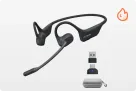
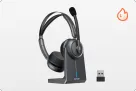
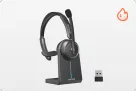
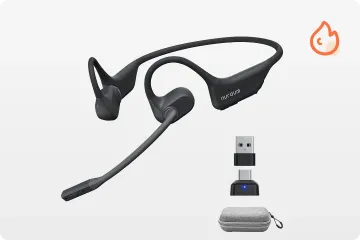
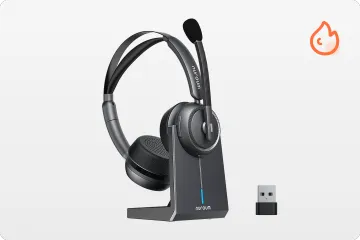
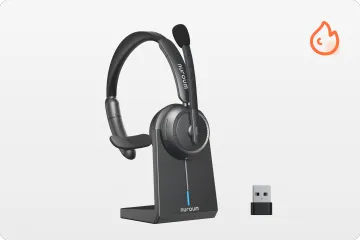
If echo persists, a noise-cancelling headset with a close-fitting boom mic can reduce background pickup and make speech clearer.
Key Takeaways
- If callers hear echo, suspect speaker bleed first: lower speaker volume or switch to a headset before changing deep settings.
- Set microphone gain so normal speech peaks around -12 dB to -6 dB; hotter gain makes echo and room noise more likely.
- Choose one microphone and one speaker in the calling app, then disable unused devices to prevent feedback loops.
- On Bluetooth, echo during calls is often a hands-free profile issue; test USB or wired mode to isolate the cause.
- A noise-cancelling microphone reduces background noise, but it cannot fully fix echo created by loud speakers near the mic.
What Causes Microphone Echo During Calls?
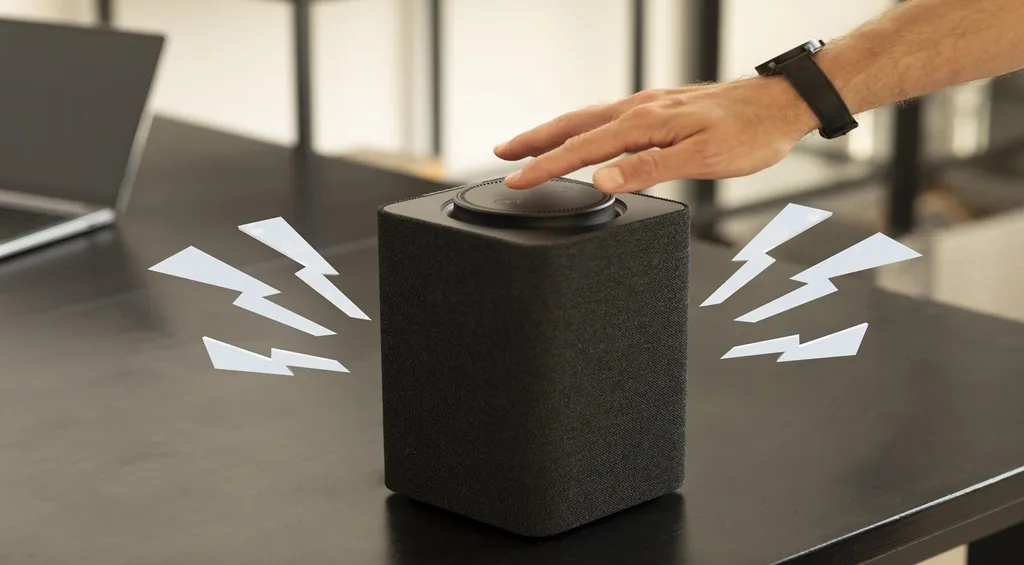
Echo happens when sound leaves a speaker, travels through the air or a surface, re-enters the microphone, and is transmitted again.
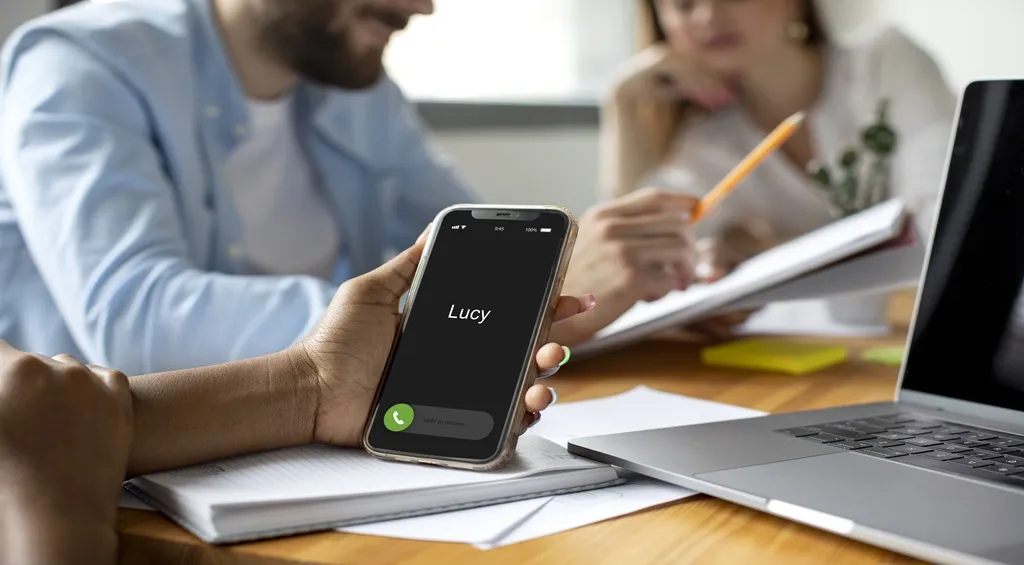
- On a simple phone call, that may be your phone speaker playing the caller’s voice directly into the phone microphone.
- On a laptop, it may be built-in speakers reflecting off a desk while the laptop mic stays open.
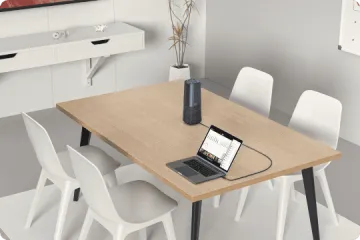
In a conference room, it can be a speakerphone and a second device both joining the same meeting.

Several less obvious causes can mimic echo:
Speaker monitoring
Some headsets and apps add sidetone so you can hear yourself; if it is too high, callers may perceive a doubling effect.
Aggressive processing:
Noise suppression, echo cancellation, and automatic gain control from different apps can conflict.
Bluetooth routing
The hands-free profile used for calls can sound narrower and more feedback-prone than the stereo profile used for media.
Why Is My Mic Echoing? Common Causes to Check
Before changing every setting, identify which cause matches your symptoms. This saves time because echo can be local, remote, or device-based.
Speaker bleed
Your speakers are loud enough for the microphone to hear them. This is the most common cause on laptops and phones.
Mic too far away or too sensitive
A distant mic needs more gain, and more gain pulls in keyboard clicks, fan noise, and speaker audio.
If your microphone is still causing problems, learn how to fix a microphone that is not working to identify potential causes.
Two devices in the same room
A phone on speaker near a laptop in the same meeting can create a feedback loop.
Bluetooth hands-free mode
The call profile may switch processing and microphone routing unexpectedly.
Conflicting audio enhancement
One app applies echo cancellation while the operating system applies another layer.
A quick diagnostic is to mute your microphone while the other person speaks.
- If the echo disappears for them, your mic is likely re-transmitting their audio.
- If echo continues, the problem may be on the remote side, in the room, or in the network.
How to Stop Echo on Mic: 6 Practical Fixes
Each fix removes one possible echo source, so you can tell what actually changed.
1. Move call audio off speakers
Lower speaker volume first, then switch to a headset or earbuds for the test. If the other side says the echo stopped immediately, speaker bleed was the cause.
This is especially important on laptops, where speakers and microphone are close together.
2. Position the microphone correctly
Place the mic about two finger-widths from the corner of your mouth, slightly off to the side rather than directly in front of it.
A boom mic is easier to position consistently than a built-in laptop mic.
3. Reduce mic gain and disable extra enhancement
Set gain so normal speech peaks roughly between -12 dB and -6 dB. Louder is not clearer. It only raises room noise and feedback risk.
In your OS sound settings, turn off unused microphones and test with audio enhancements off.
4. Select one input and one output in the app
Open the audio settings inside Zoom, Teams, Meet, Webex, or your phone app and confirm both the microphone and speaker are set to the same device.
If your headset mic is selected but audio is still coming from laptop speakers, echo becomes likely.
5. Remove duplicate devices from the room
If you join a meeting from both a laptop and a phone, mute or disconnect one.
Two open mics in one acoustic space can create a loop even when each device sounds fine alone.
6. Fix Bluetooth echo mode
Reconnect the headset, restart the calling app, and make sure the app shows the headset microphone rather than the computer mic.
If echo only happens in calls, test the same headset wired or with a USB dongle.
How to Fix Echo on Phone Calls, Zoom Meetings, and Other Devices
Platform fixes are similar, but the default audio path differs.
Phone calls
· Use a wired or Bluetooth headset for the cleanest separation between earpiece and microphone.
· If you use an iPhone or Android with a headset, check that the call audio is routing to the headset rather than the phone earpiece.
Zoom
· Open Settings → Audio, confirm the correct microphone and speaker, run the mic test。
· Try Zoom’s echo cancellation setting if your hardware struggles.
Microsoft Teams
Check device settings before joining, especially if you dock and undock during the day. Teams may remember a different speaker from the last meeting.
Google Meet
· Use the pre-join check to confirm the input meter responds only to your voice.
· If Meet is open in a browser tab while a desktop app also runs, close one instance to avoid competing audio control.

If only one app echoes, the cause is usually that app’s device selection or processing; If every app echoes, focus on hardware, OS sound settings, room acoustics, and network.
Can a Noise-Cancelling Headset Prevent Microphone Echo?
A noise-cancelling headset helps, but the benefit depends on what kind of “noise” you mean.
ANC, or active noise cancellation, is mainly for the wearer’s ears:
· It reduces what you hear from fans, traffic, or open offices.
· It does not stop your microphone from hearing a loud speaker beside it.
For echo, the more relevant feature is a noise-cancelling microphone.
· A good boom mic with environmental noise cancellation or multiple microphones is designed to favor your voice and reject keyboard clatter, air conditioning, nearby speech, and reflected room sound.
· Because the mic sits close to your mouth, it can run at lower gain, which reduces the chance that remote audio leaks back into the call.
Choose a headset when you take calls daily, work in a noisy or shared space, move between desk and phone, or have already tried app and OS settings. It can remove the fragile part of the setup: a distant microphone trying to hear you over the room.
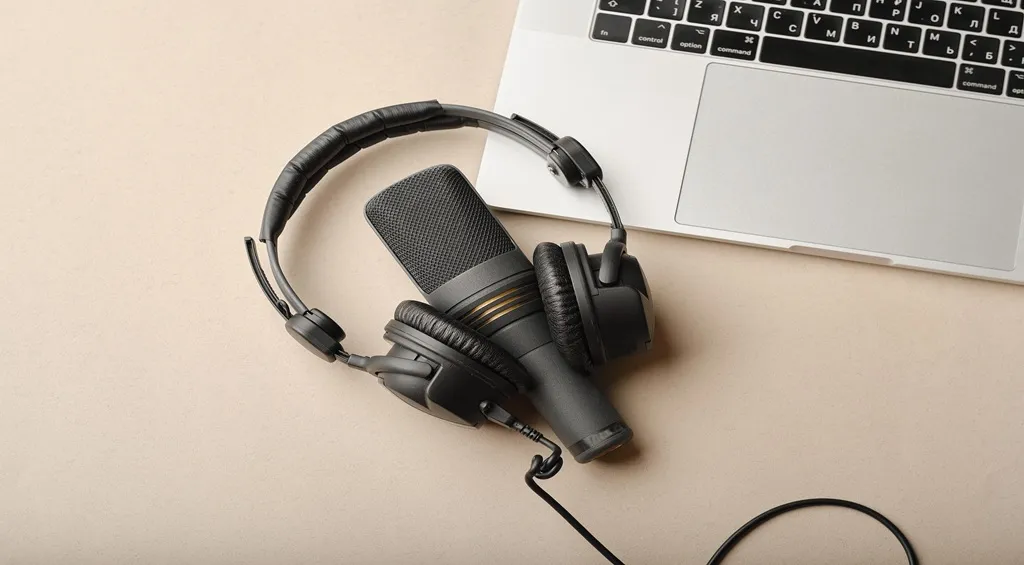
- For style-specific comfort, some callers prefer an open-ear headphone with mic because it keeps them aware of their surroundings.
- If you are comparing designs, it helps to understand how open-ear headphones work before choosing one for calls.
How to Choose a Headset with Microphone Noise Cancellation for Clearer Calls
Use this checklist before upgrading. The goal is not the most expensive model. It is the most stable audio path for your calls.
Microphone design
Look for a boom mic that sits close to your mouth and has noise reduction for calls.

Connection stability
· USB or a certified wireless dongle is often more predictable for desk work.
· Bluetooth is convenient for mobile calls, but confirm it supports your phone, laptop, and calling apps well.
Controls
A physical mute button, reliable volume control, and easy device switching save time when a call starts badly.
Compatibility
Check whether your platform of choice—Teams, Zoom, Webex, softphone, or mobile calling—recognizes the headset mic reliably.
Fit and comfort
If you wear it for hours, weight, clamp force, ear cushion material, and glasses compatibility matter more than small spec differences.

Room reality
· If your workspace is loud, prioritize microphone noise rejection and consistent boom position.
· If your workspace is quiet, comfort and battery may matter more.
As a rule, upgrade after basic troubleshooting—not before it. Fix the obvious loop first, then buy gear that makes the correct setup repeatable.
FAQs
Why do other people hear echo but I do not?
Because your microphone is sending their voice back to them. The audio leaves your speaker, re-enters your mic, and travels through the call path again.
Ask the remote caller whether the echo stops when you mute, lower speaker volume, or switch to a headset.
What is the fastest way to stop echo on mic during a call?
· Mute yourself first to confirm the source.
· Lower speaker volume or move audio to a headset.
· Select the correct microphone and speaker inside the app.
These three actions resolve many echo complaints without changing deeper settings.
Is a wireless headset better than laptop speakers for echo?
Usually, yes.
A headset separates what you hear from what the microphone picks up, and a close boom mic can use lower gain.
For call-heavy work, it is often the most reliable way to keep echo and background noise under control.
Do I need ANC or a noise-cancelling microphone?
For echo, prioritize the microphone.
ANC improves what you hear. A noise-cancelling mic improves what the other side hears.
If your room is noisy, choose a headset with both good mic rejection and comfortable ANC rather than ANC alone.