























Mic echo on calls is usually caused by speaker sound feeding back into the microphone, wrong input/output selection, or clashing audio processing.
Lowering speaker volume, switching to a headset, enabling echo cancellation, and correcting mic placement fixes most cases in minutes.
A headset with a noise-cancelling mic removes background noise but works best alongside platform-level echo cancellation.
Key Takeaways
- Switching from speakers to any headset eliminates the most common echo cause — speaker audio re-entering the mic — in a single step.
- Set your microphone 2–3 finger-widths from the corner of your mouth and slightly off-axis to cut plosives and reflected sound.
- Enable the echo cancellation built into Zoom, Teams, or Meet before buying anything; it resolves most software-side echo.
- Microphone noise cancellation removes background noise, while echo cancellation removes your own voice looping back — you often need both.
- For daily call-heavy work, a dedicated headset with a noise-cancelling boom mic outperforms laptop mics and earbuds on voice clarity.
What Causes Echo on a Mic During Calls?
Echo happens when the person on the other end hears their own voice come back through your microphone. Technically, it's an audio feedback loop, and it almost always traces back to one of these causes:
Speaker bleed
Your laptop, monitor, or phone speakers play the caller's voice loudly enough for your mic to pick it up and send it back. This is the most common cause by far.
Wrong input or output device
Your calling app uses a different mic or speaker than you expect — for example, the laptop's built-in mic while your headset is connected.
Mic too far away or poorly positioned
A distant mic forces you to boost gain, which makes it sensitive enough to catch room reflections and speaker audio.
Volume set too high
Cranked-up speakers and mic boost settings create the conditions echo needs to form.
Clashing audio processing
Running noise suppression in both your operating system and your calling app causes artifacts that sound like echo.
Once you know which one you're dealing with, the fix is usually straightforward.
How to Stop Echo on Mic: 6 Quick Fixes That Work
Put on a headset (or turn your speakers down)
If you use external speakers, their output feeds your mic. Plugging in even a basic headset breaks the feedback loop instantly.

Check your app's audio settings
In Zoom, Teams, or Meet, confirm the correct microphone and speaker are selected — and that they match. If the headset is your output, it should be your input too.
Lower the volume
Reduce speaker volume to the lowest comfortable level. Echo needs a loud signal to loop back, so quieter output starves it.
Enable echo cancellation
Most calling apps have this built in (in Zoom, Audio → Advanced). Turn it on, and avoid stacking multiple "enhancement" tools.
Reposition the mic
Move the mic closer to your mouth — about 2–3 finger-widths from the corner of your mouth, slightly to the side. Close mics need less gain and pick up less room sound.

Test on another device
· If echo persists everywhere, the headset or mic itself is at fault.
· If it only appears on one device, that device's settings are the problem.
How to Fix Mic Echoing on Different Devices and Calling Apps
Echo behaves a little differently depending on where you're calling from:
Windows PCs
· Open Settings → System → Sound and verify the input device matches your headset.
· Disable "Microphone Boost" — boost amplifies everything, including speaker bleed.
Mac
· Confirm the correct input under System Settings → Sound.
· If you use both Zoom's and macOS's voice processing, pick one; stacking them creates metallic, echo-like artifacts.
Smartphones
Speakerphone is the biggest echo culprit on mobile. Lower the volume, or switch to a headset.
If echo starts mid-call, hang up and redial — this resets the network's echo suppression.
Zoom / Teams / Meet
Each has its own echo cancellation setting in audio preferences. In a conference room with external speakers, keep non-speakers muted, or the room will echo by design.
Can a Headset with Mic Noise Cancelling Stop Echo During Calls?
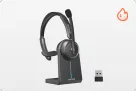
A headset with mic noise cancelling attacks the root cause of most echo: speaker bleed. Because audio plays directly into your ears instead of into the room, there's nothing for your microphone to pick up and send back — which removes the majority of echo on calls.
There's a distinction worth understanding.
- Microphone noise cancellation (what the headset provides) removes background noise — keyboards, air conditioning, office chatter — so callers hear your voice more clearly.
- Echo cancellation is a separate software process, usually handled by your calling app, that detects and subtracts audio returning from the far end of the call.
They solve different problems:
| Feature | What it removes | Who does the work |
|---|---|---|
| Noise-cancelling mic | Background sounds around you | Headset hardware/DSP |
| Echo cancellation | Your caller's voice looping back | Calling app or OS software |
The practical takeaway: a noise-cancelling mic dramatically reduces the raw material echo needs, while platform-level echo cancellation cleans up whatever remains. For the clearest calls, you want both — and a dedicated headset delivers the first half by default.
How Do Headset Settings and Mic Placement Prevent Echo?
Two habits separate echo-free callers from everyone else: correct placement and sensible settings.
Placement
Position the mic boom about 2–3 cm from the corner of your mouth, angled slightly off-axis rather than pointing straight at your lips.
This "talking past the mic" technique keeps voice pickup strong while minimizing breath noise and plosive pops.

Settings
Keep mic sensitivity at the default level and resist the urge to add gain. A properly placed close mic doesn't need it.
If your headset has multiple pickup patterns, choose the narrow, directional option for calls — it rejects sound from the sides and behind, including residual speaker audio in the room.
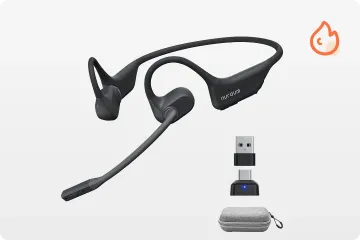
Users who prefer situational awareness during long call days sometimes choose an open ear headphone with mic instead of sealed earcups.
How to Choose the Right Headset for Clear, Echo-Free Calls
Not every headset handles echo and noise equally well. Here's what to prioritize if clear calls are the goal:
Directional boom mic with noise cancellation
A mic positioned close to your mouth beats any beamforming array in earbuds. Look for models that advertise a noise-cancelling or ENC (environmental noise cancellation) microphone.
Closed or semi-closed ear design
Less sound leakage means less chance of audio reaching the mic.
If you need ambient awareness, compare options among the best open ear headphone for phone calls and favor those with directional mics.
Reliable connection
A dedicated USB dongle or modern Bluetooth with stable firmware prevents dropouts and latency that mimic echo.
For calls in busy environments, compare Bluetooth headsets for calls in noisy environments to find a headset that helps maintain clear voice pickup.
All-day comfort and controls
Mute buttons and volume wheels on the earcup help you react instantly when echo appears.
Platform compatibility
Confirm the headset works with your calling apps and operating system, especially if you split time between a desk phone and a laptop.
Match these criteria to your environment — noisy home office, shared call center floor, or hybrid commuting — and echo problems largely disappear from the equation.
FAQs
Why does my mic echo only when someone else is on speaker?
Because the echo isn't coming from your mic — it's the other participant's speaker audio reaching their own microphone and bouncing back. Ask them to use a headset or lower their volume.
Will a noise-cancelling microphone remove echo in a big echoey room?
It helps, but only partly. Mic noise cancellation targets background noise, not room reverberation. Hard surfaces reflect your voice back into any mic, so rugs and curtains do more for room echo than any headset.
Is a USB headset better than Bluetooth for avoiding echo?
Slightly.
USB offers lower latency and a more stable audio path, which keeps software echo cancellation in sync. Bluetooth is fine with modern firmware, but USB removes one more variable.