


















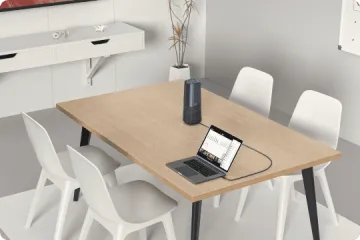




Your manager just mentioned three action items on Zoom, but your dog won't stop barking and your child is crying in the next room. You rely on Otter.ai or Zoom AI Companion to capture every detail, but even a zoom ai companion background noise filter can't fix every audio problem. Without an otter ai meeting assistant clear microphone setup, your meeting summary might miss a deadline or an important decision. After all, AI can only transcribe what it hears. A noise cancelling headphone for work from home with an effective microphone helps reduce household noise and gives AI meeting assistants cleaner audio to work with.
Key Takeaways
- AI notes are only as good as your mic input. Errors in names, numbers, and deadlines usually start with noisy audio, not weak AI.
- Software suppression has limits. Zoom's filter handles steady hums; sudden household noise needs a noise cancelling microphone.
- ENC beats ANC for calls. ENC cleans what your microphone sends; ANC only quiets what you hear.
- Match the headset to your household. Dual-ear HP31D for deep focus; the 31 g OpenEar Pro 2 for staying aware.

Why AI Meeting Assistants Need Clear Audio to Work Properly
AI meeting assistants fail on noisy audio because every summary is built on a transcript, and every transcript is built on what your mic captured.
How AI Turns Meeting Audio into Action Items
The pipeline has three stages: your microphone captures speech, speech recognition turns the audio into a transcript, and the AI condenses that transcript into decisions and action items.
Quality is decided at stage one — noisy capture damages everything after it. (If your transcripts already look rough, our guide on how to fix AI dictation accuracy covers the software side.)
What Happens When Background Noise Gets in the Way?
Background noise causes transcription errors exactly where accuracy matters most — names, numbers, deadlines, task ownership. A barking dog can drown out a colleague mid-sentence; overlapping voices confuse speaker identification, so action items land on the wrong person. Even the best Otter AI meeting assistant needs a clear microphone signal — "approved at $14,000" can become "$40,000" over a running blender.

How to Keep Zoom from Picking Up Background Noise
The fastest way to keep Zoom from picking up background noise is to combine Zoom's built-in suppression with a dedicated headset microphone. Three adjustments cover most home offices.
1. Adjust Zoom's Background Noise Suppression
Go to Settings → Audio → Background noise suppression: Low preserves natural voice, Medium handles fans and typing, High targets persistent noise. This background noise filter — the same cleanup layer behind Zoom AI Companion transcripts — works best on steady sounds; pushed hard against irregular noise, it can clip your voice.
2. Use a Dedicated Microphone Instead of Your Laptop's Built-in Mic
Your laptop mic hears everything equally: your voice, the dog, the dishwasher, the echo. A work from home headset with a noise cancelling microphone sits near your mouth and uses environmental noise cancellation (ENC) to strip out the rest before it reaches Zoom.
3. Keep Your Microphone Properly Positioned
Keep a boom mic one to two finger-widths from the corner of your mouth — close for strong pickup, off-axis to avoid breath pops. Mute when you're not speaking.
Build a Smarter AI Meeting Workflow for Working from Home
A reliable work-from-home AI meeting workflow pairs clean audio with a simple routine — on Zoom, Microsoft Teams, or Google Meet.
- Before: Connect your work from home headset with a noise cancelling microphone, check that Zoom is using the correct audio input instead of your laptop mic, and enable your AI meeting assistant.
- During: Speak steadily, avoid talking over others, and restate names, dates, and numbers when assigning tasks — this is where a good noise cancelling headset for work pays off.
- After: Review the AI-generated transcript, correct names and figures, and transfer key action items into your task manager.
The Right Noise Cancelling Headphone for Work From Home
The right choice comes down to one question: do you need to block your home out, or stay aware of it? Both headsets feature dual-mic ENC with HiFi 4 DSP for clearer calls, plus plug-and-play USB dongles for easy connectivity — they differ in how much of your surroundings they let in.
Nuroum HP31D — Best for Deep Focus in Loud Households
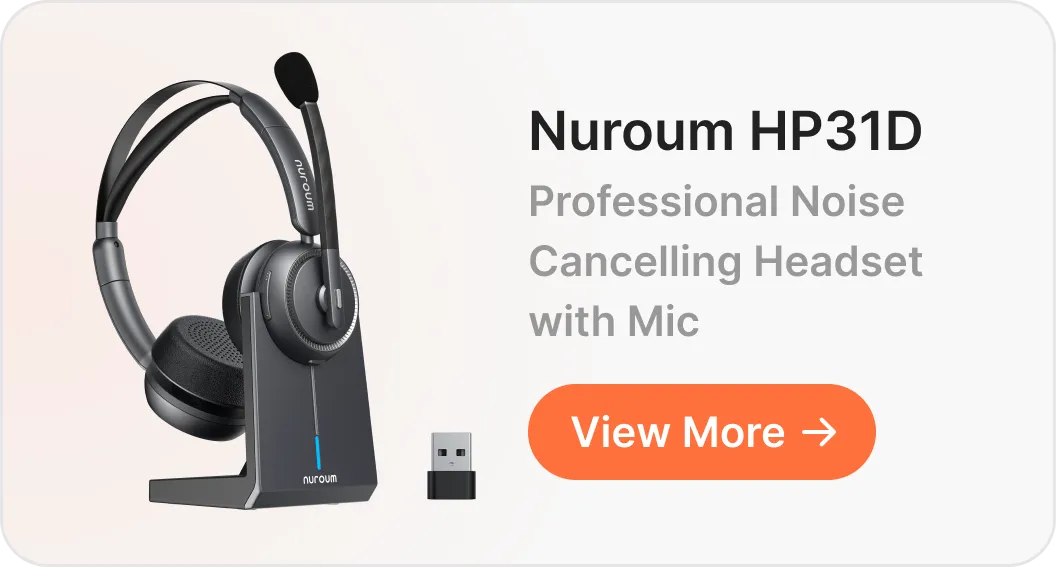
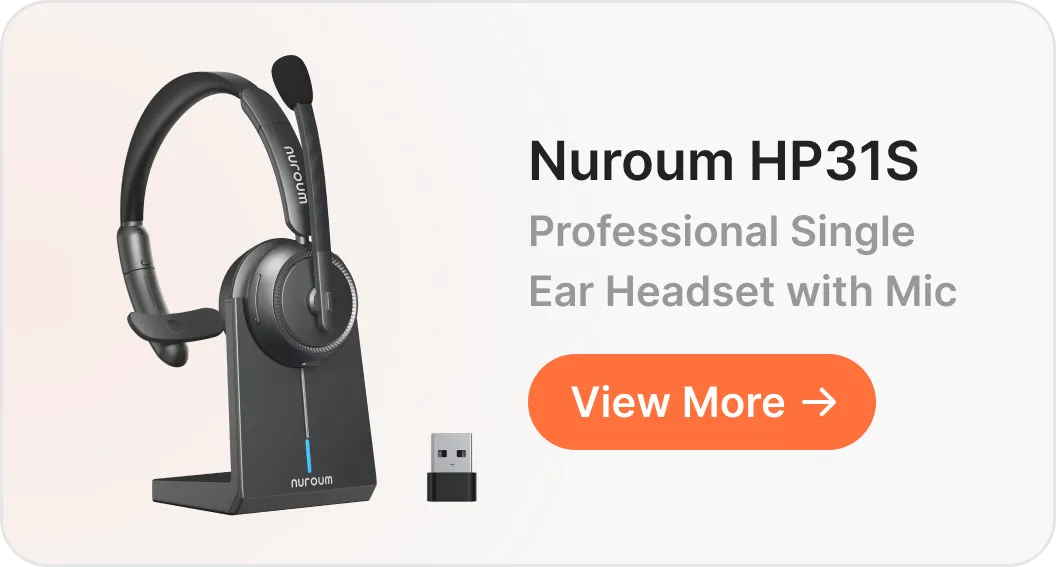
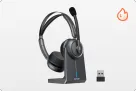
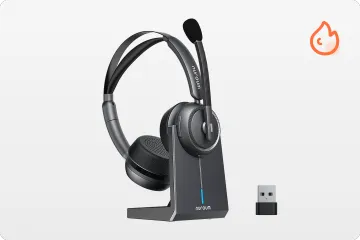
The Nuroum HP31D is a dual-ear wireless headset with noise cancelling mic for people who need to shut the house out and concentrate through back-to-back meetings.
- Dual-ear (binaural) design surrounds your ears, keeping you focused.
- Up to 45 hours of battery life with a charging stand — drop it on the base at night.
- Dedicated mute button and USB-A dongle for true plug-and-play.
- We tested it in a noisy home environment, and the mic kept voices clear over everyday household chaos.
Trade-offs: The closed fit reduces awareness of your surroundings — not ideal if you're listening for a toddler.
Best for: Call-heavy, deep-focus work in loud households.
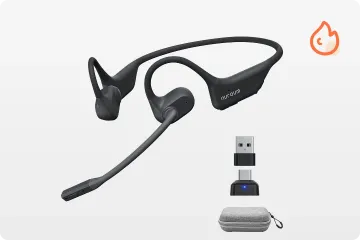
Nuroum OpenEar Pro 2 — Best for Parents and Caregivers on Calls
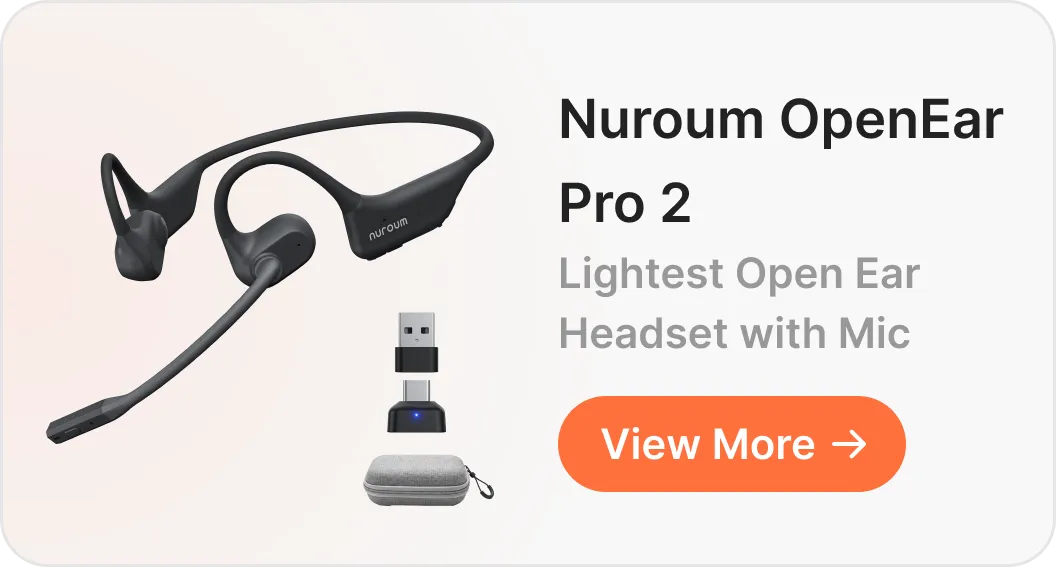
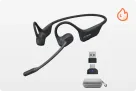
The Nuroum OpenEar Pro 2 is an open-ear headset for people who can't afford to tune out their home. At 31 g it rests outside your ear canal, so you hear your meeting and the baby monitor at once.
- Open-ear neckband design: no ear-canal pressure, even across a full day of calls.
- Dual noise-cancelling mics — callers hear you, not your home or kitchen. We even ran a coffee machine test at home.
- USB-A/C dongle and a physical mute button for instant privacy.
Trade-offs: Open-ear means no passive isolation — in a loud room you'll still hear the chaos yourself, even though your callers won't.
Best for: Work-from-home parents, caregivers, and anyone needing all-day comfort.
| Nuroum HP31D | Nuroum OpenEar Pro 2 | |
|---|---|---|
| Form factor | Dual-ear (binaural) | Open-ear neckband, 31 g |
| Mic setup | Dual ECM omnidirectional + HiFi4 DSP | Dual ECM omnidirectional + HiFi4 DSP |
| Battery | Up to 45 hours, charging stand | All-day use, USB-A/C dongle |
| Price | From $90 | From $129 |
| Best for | Deep focus, loud homes | Parents, caregivers, long wear |
Both headsets focus on ENC (cleaning what your mic sends to callers and AI tools), not ANC (quieting what you hear) — for meeting accuracy, ENC does the real work.
Better Audio, Better Notes, Less Meeting Fatigue
Cleaner audio in means better AI notes out. Loud home, packed calendar? The HP31D's dual-ear focus and 45-hour battery fit the bill. Splitting attention between Zoom and a household that needs you? The OpenEar Pro 2 keeps you aware without sacrificing mic clarity. Either way, your AI assistant — and everyone on the call — will hear you properly.
FAQ
1. Does the Zoom AI Companion background noise filter replace a noise cancelling microphone?
No. Zoom's suppression handles steady sounds like fans but struggles with sudden noise like barking dogs. A noise cancelling microphone cleans your voice at the source, producing more accurate transcripts.
2. Can an open-ear headset still give an Otter AI meeting assistant a clear microphone signal?
Yes. Open-ear describes the speaker design, not the microphone. The OpenEar Pro 2 leaves your ears uncovered while its dual noise-cancelling mics isolate your voice for Otter AI.
3. What is the difference between ANC and ENC on a work-from-home headset?
ANC reduces the noise you hear; ENC reduces the background noise your microphone picks up, so colleagues and AI tools hear you clearly. For calls and meeting notes, ENC matters most.
4. Is a work from home headset with a noise cancelling microphone worth it if I already use AI transcription?
Yes — every AI summary and action item is built from what your microphone captures, so a better microphone improves every downstream output automatically.